> ## Documentation Index
> Fetch the complete documentation index at: https://docs.intelagent.ca/llms.txt
> Use this file to discover all available pages before exploring further.
# MC EDT Designation
> Step-by-step guide to authorize IntelAGENT as your EDT designee through GO Secure
## Overview
Before IntelAGENT can submit claims on your behalf, you must designate it as your agent through the Ministry of Health's EDT (Electronic Data Transfer) system.
This process typically takes 1-2 business days to complete after IntelAGENT accepts your invitation.
## Step 1: Log into the MOHLTC Site
Go to the [MOHLTC EDT Portal](https://www.edt.health.gov.on.ca/) and sign in using your GO Secure account.
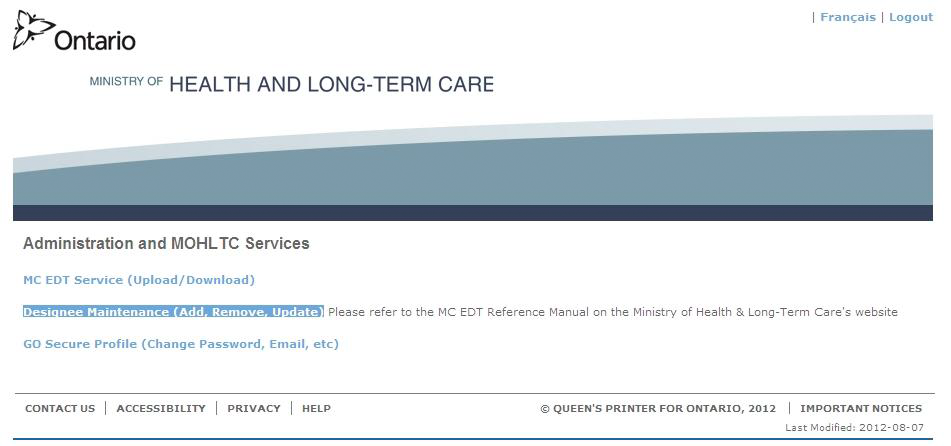
## Step 2: Access Designee Maintenance
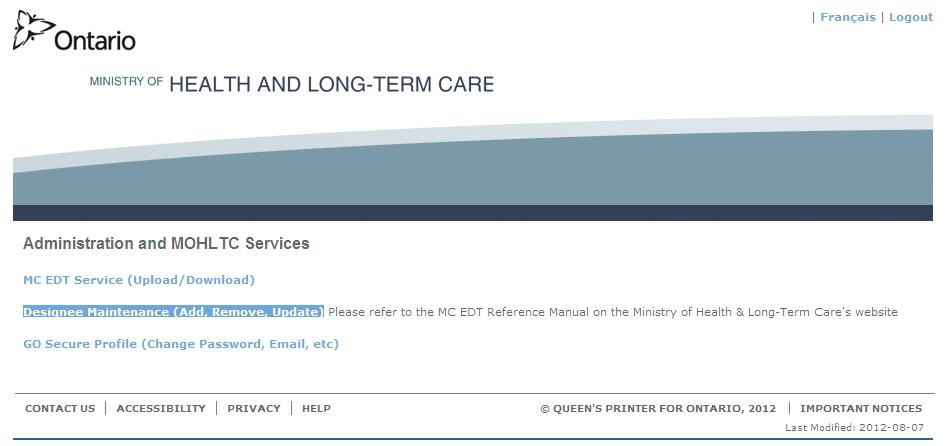
Click the **Designee Maintenance** link.
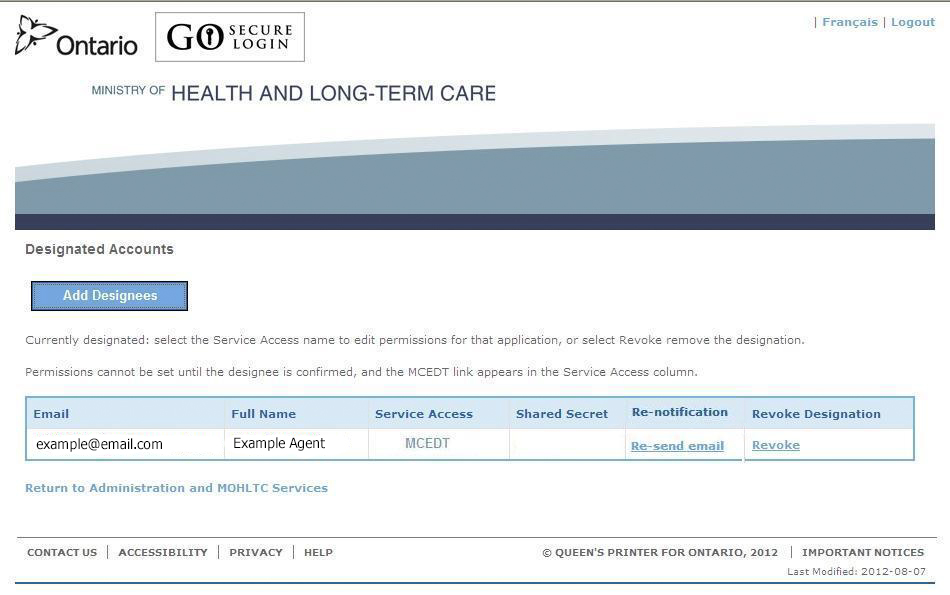
 ## Step 3: Add Designee
Click **Add Designee**.
## Step 3: Add Designee
Click **Add Designee**.
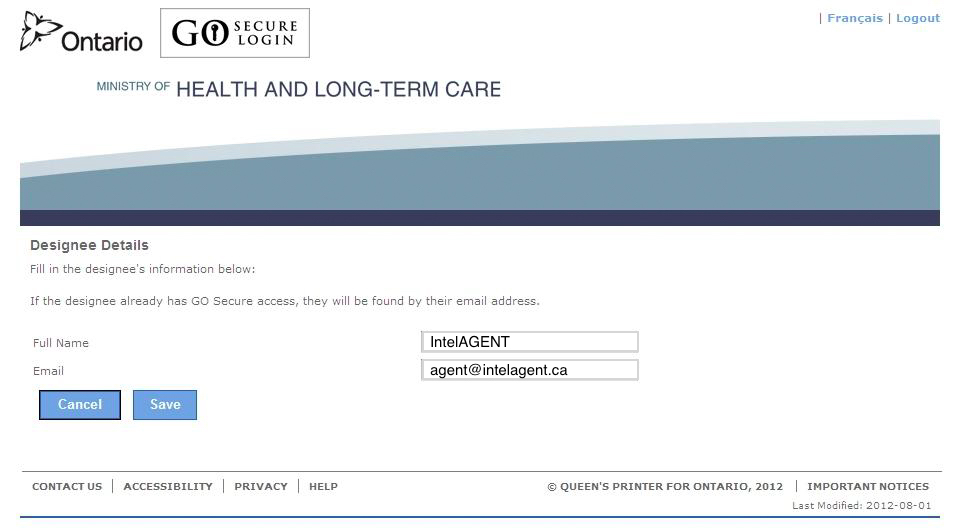
 ## Step 4: Enter Designee Details
Enter the following information:
* **Full Name:** IntelAGENT
* **Email:** [agent@intelagent.ca](mailto:agent@intelagent.ca)
Click **Save**.
## Step 4: Enter Designee Details
Enter the following information:
* **Full Name:** IntelAGENT
* **Email:** [agent@intelagent.ca](mailto:agent@intelagent.ca)
Click **Save**.
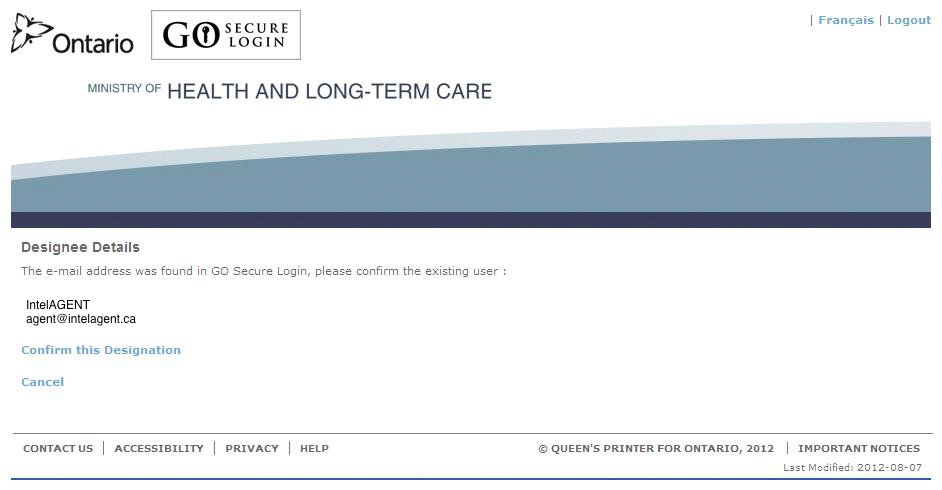
 ## Step 5: Confirm the Designation
Click **Confirm this Designation**.
## Step 5: Confirm the Designation
Click **Confirm this Designation**.
 ## Step 6: Wait for Acceptance
You will receive an email from GO Secure when IntelAGENT has accepted the invitation.
## Step 7: Grant Permissions
Once you receive the acceptance email:
1. Click the link in the email to return to GO Secure
2. Click the **Designee Maintenance** link
## Step 6: Wait for Acceptance
You will receive an email from GO Secure when IntelAGENT has accepted the invitation.
## Step 7: Grant Permissions
Once you receive the acceptance email:
1. Click the link in the email to return to GO Secure
2. Click the **Designee Maintenance** link
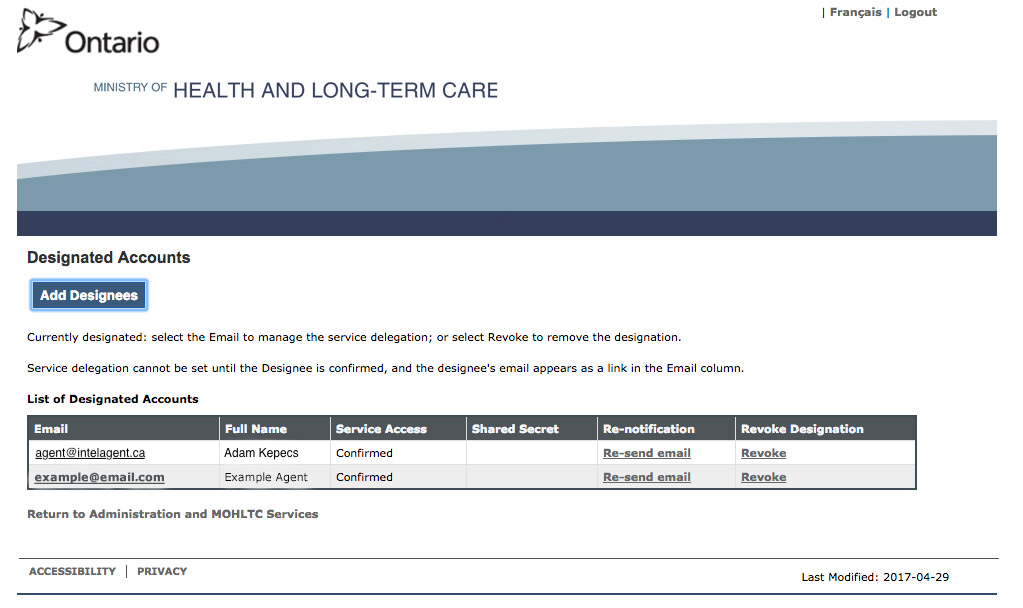
 3. Find the row with **[agent@intelagent.ca](mailto:agent@intelagent.ca)** and click on the email hyperlink
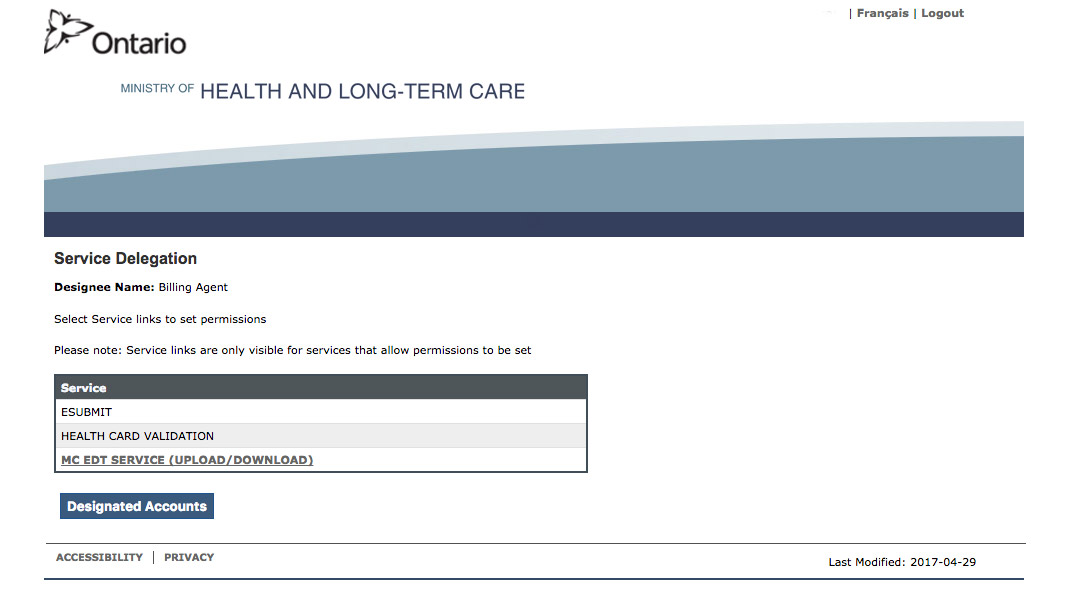
 4. Select the **MC EDT** hyperlink
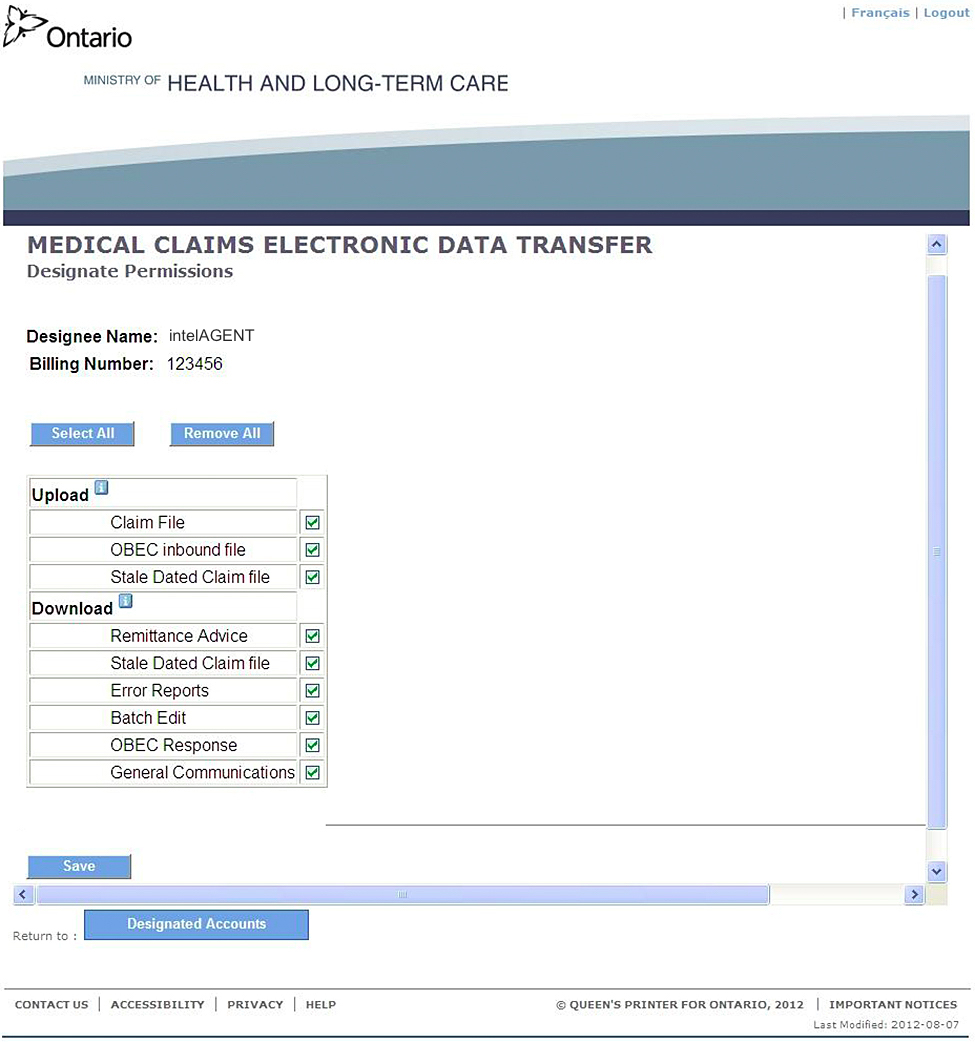
 5. Click **Select All** and then **Save**
 IntelAGENT is now designated as your agent and can submit claims on your behalf.