> ## Documentation Index
> Fetch the complete documentation index at: https://docs.intelagent.ca/llms.txt
> Use this file to discover all available pages before exploring further.
# OHIP Onboarding
> Create your account and finish OHIP setup — subscribe, designate IntelAGENT as your EDT agent, and activate — so you can submit claims
## Overview
After you create your account you get **immediate access to explore the platform** — but before you can **submit OHIP claims** there are a few steps to complete. IntelAGENT guides you through them in the **onboarding wizard**.
You reach the wizard right after signing up, and you can return to it any time from the user menu → **User Onboarding**. A red dot stays on that menu item until everything is done.
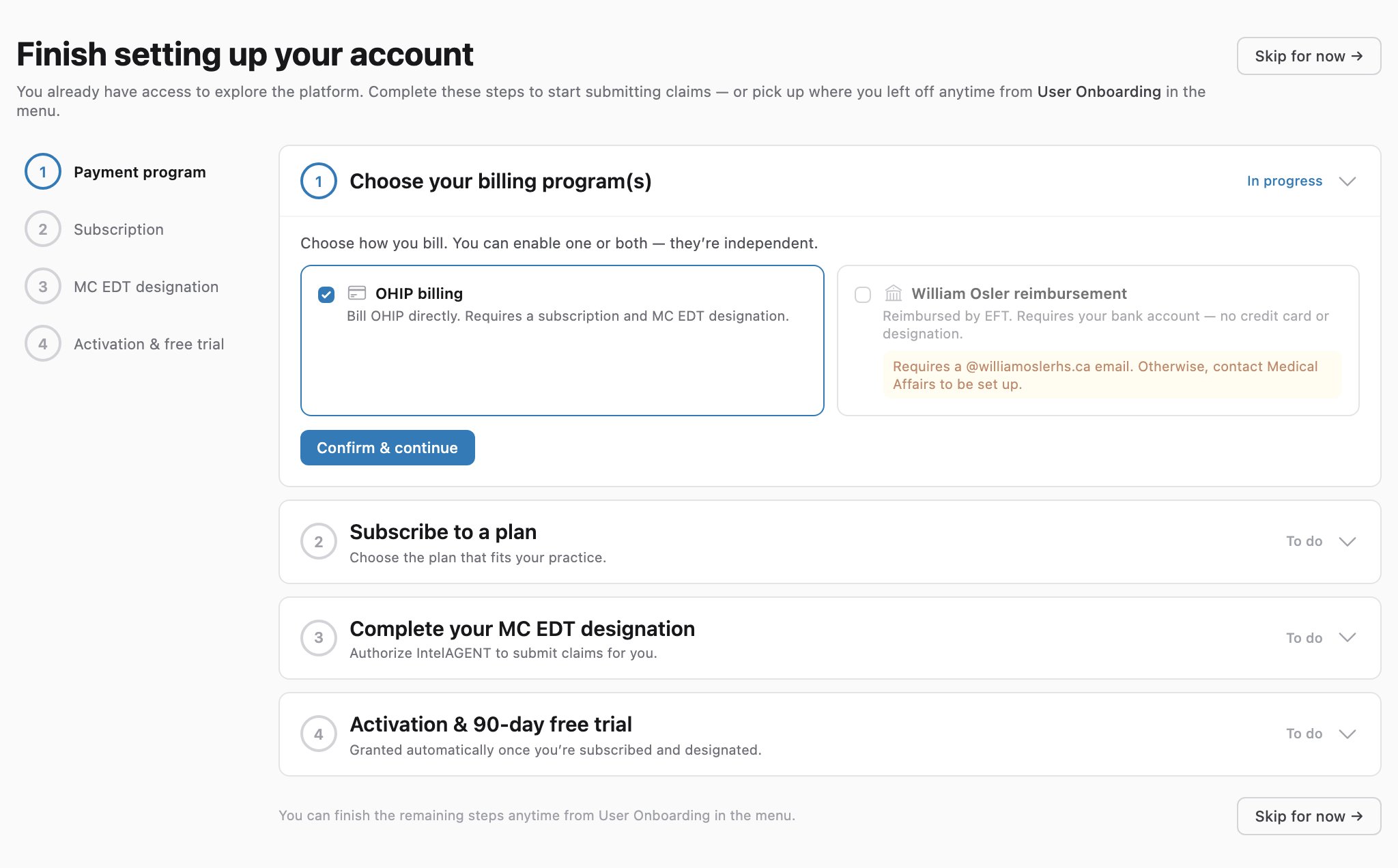 You can leave the wizard at any point with **Skip for now** and pick up where you left off later — your progress is saved.
Billing for services provided at **William Osler Health System**? See **[WOHS Onboarding](/docs/william-osler/onboarding)** instead — that path is reimbursed by EFT and needs no subscription or MC EDT designation.
## Create your account
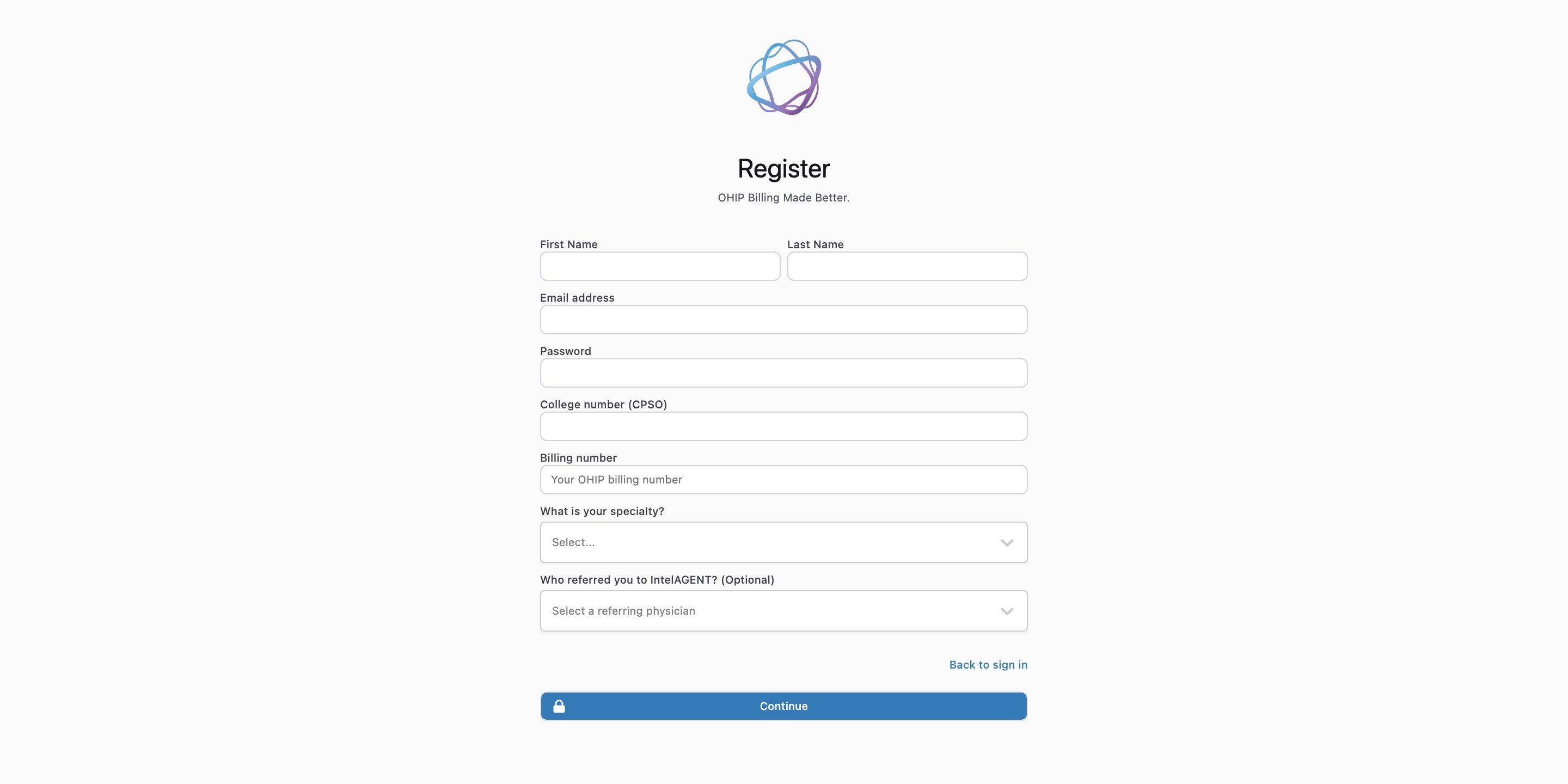
Sign up at [app.intelagent.ca/register](https://app.intelagent.ca/register). Enter your name, email, and a password (at least 8 characters), then click **Continue** — you'll go straight into the onboarding wizard.
You can leave the wizard at any point with **Skip for now** and pick up where you left off later — your progress is saved.
Billing for services provided at **William Osler Health System**? See **[WOHS Onboarding](/docs/william-osler/onboarding)** instead — that path is reimbursed by EFT and needs no subscription or MC EDT designation.
## Create your account
Sign up at [app.intelagent.ca/register](https://app.intelagent.ca/register). Enter your name, email, and a password (at least 8 characters), then click **Continue** — you'll go straight into the onboarding wizard.
 ## Step 1 — Choose your billing program
Select **OHIP billing** to bill OHIP directly, then click **Confirm & continue**. The remaining steps update to match your selection.
The two billing programs are **independent** — you can also enable **William Osler reimbursement** here if you have a `@williamoslerhs.ca` email. See [WOHS Onboarding](/docs/william-osler/onboarding) for that path.
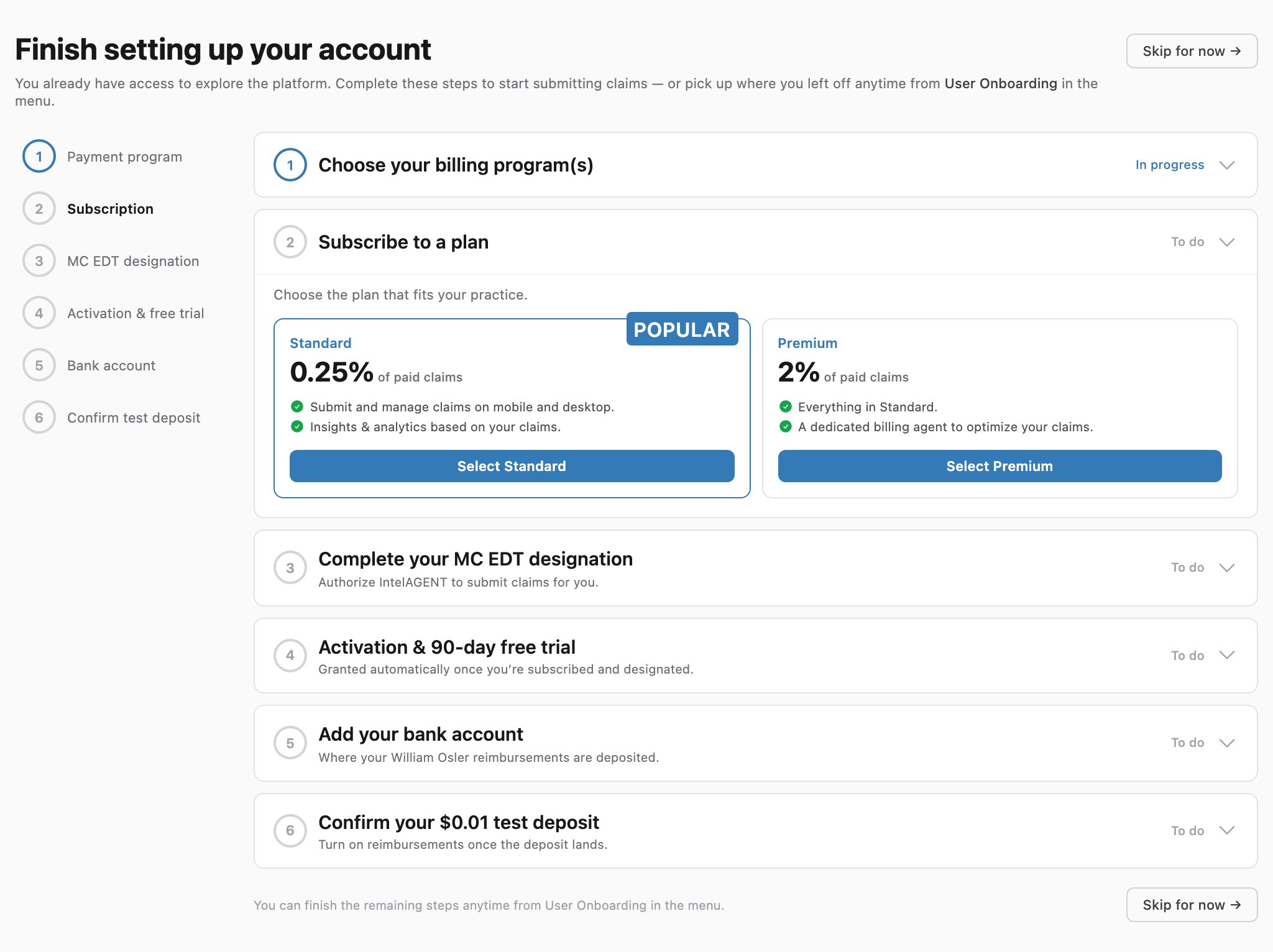
## Step 2 — Subscribe to a plan
Choose the plan that fits your practice and add a payment method. Your card isn't charged during the free trial (see below).
## Step 1 — Choose your billing program
Select **OHIP billing** to bill OHIP directly, then click **Confirm & continue**. The remaining steps update to match your selection.
The two billing programs are **independent** — you can also enable **William Osler reimbursement** here if you have a `@williamoslerhs.ca` email. See [WOHS Onboarding](/docs/william-osler/onboarding) for that path.
## Step 2 — Subscribe to a plan
Choose the plan that fits your practice and add a payment method. Your card isn't charged during the free trial (see below).
 ## Step 3 — Complete your MC EDT designation
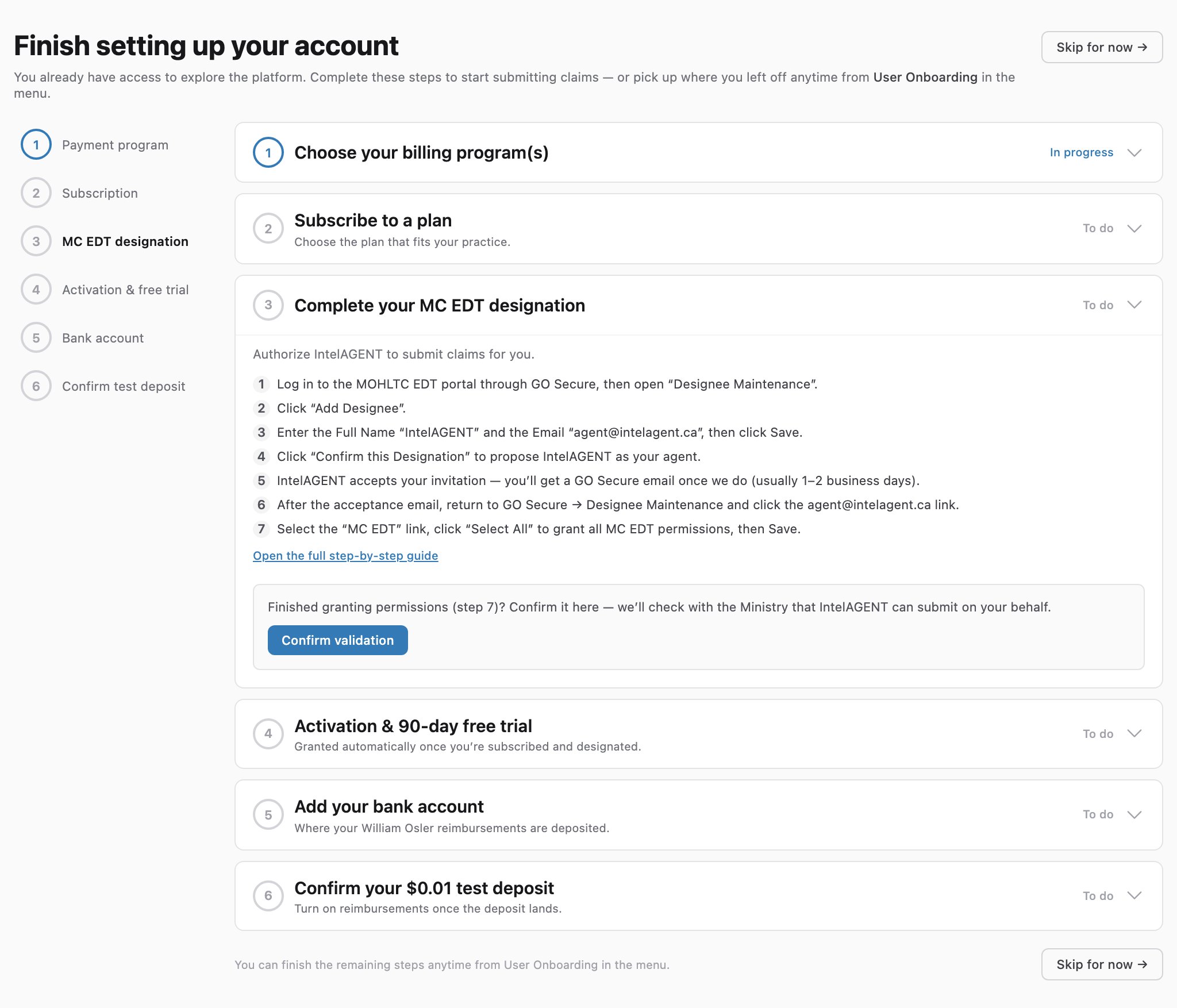
Authorize IntelAGENT to submit claims on your behalf by designating us as your EDT agent through GO Secure. The step lists every instruction inline; for the full walkthrough see the [MC EDT Designation](/docs/getting-started/designation) guide.
When you've finished granting permissions, click **Confirm validation**. IntelAGENT checks with the Ministry that the designation is live. If it isn't confirmed yet, finish granting the MC EDT permissions and try again.
## Step 3 — Complete your MC EDT designation
Authorize IntelAGENT to submit claims on your behalf by designating us as your EDT agent through GO Secure. The step lists every instruction inline; for the full walkthrough see the [MC EDT Designation](/docs/getting-started/designation) guide.
When you've finished granting permissions, click **Confirm validation**. IntelAGENT checks with the Ministry that the designation is live. If it isn't confirmed yet, finish granting the MC EDT permissions and try again.
 ## Step 4 — Activation & 90-day free trial
Once you're **subscribed** and your **designation is confirmed**, your account is activated automatically and your **90-day free trial** begins — no charge until it ends. You can now submit claims.
## Step 4 — Activation & 90-day free trial
Once you're **subscribed** and your **designation is confirmed**, your account is activated automatically and your **90-day free trial** begins — no charge until it ends. You can now submit claims.
 Until your account is activated, any claims you create are saved as drafts and held — they are only submitted to OHIP once you're active.
## Tracking your progress
The left-hand step list shows the status of every step — completed steps are marked, and the current step is highlighted. Click any step to jump to it. When everything is done, the **User Onboarding** reminder in the user menu clears.
Until your account is activated, any claims you create are saved as drafts and held — they are only submitted to OHIP once you're active.
## Tracking your progress
The left-hand step list shows the status of every step — completed steps are marked, and the current step is highlighted. Click any step to jump to it. When everything is done, the **User Onboarding** reminder in the user menu clears.