> ## Documentation Index
> Fetch the complete documentation index at: https://docs.intelagent.ca/llms.txt
> Use this file to discover all available pages before exploring further.
# Import Claims from my EMR
> Turn an EMR export into a day's worth of claims in one pass
If your EMR can export the day's patient list, you never have to type those
claims. Drop the file in, check what IntelAGENT flags, and submit.
**Before you start:** an export from your EMR as `.csv`, `.xls` or `.xlsx`.
Epic and Cerner exports work as they come out of the system.
## Drop the file in
Open **Claim Import** from the sidebar and drop your export onto the box.
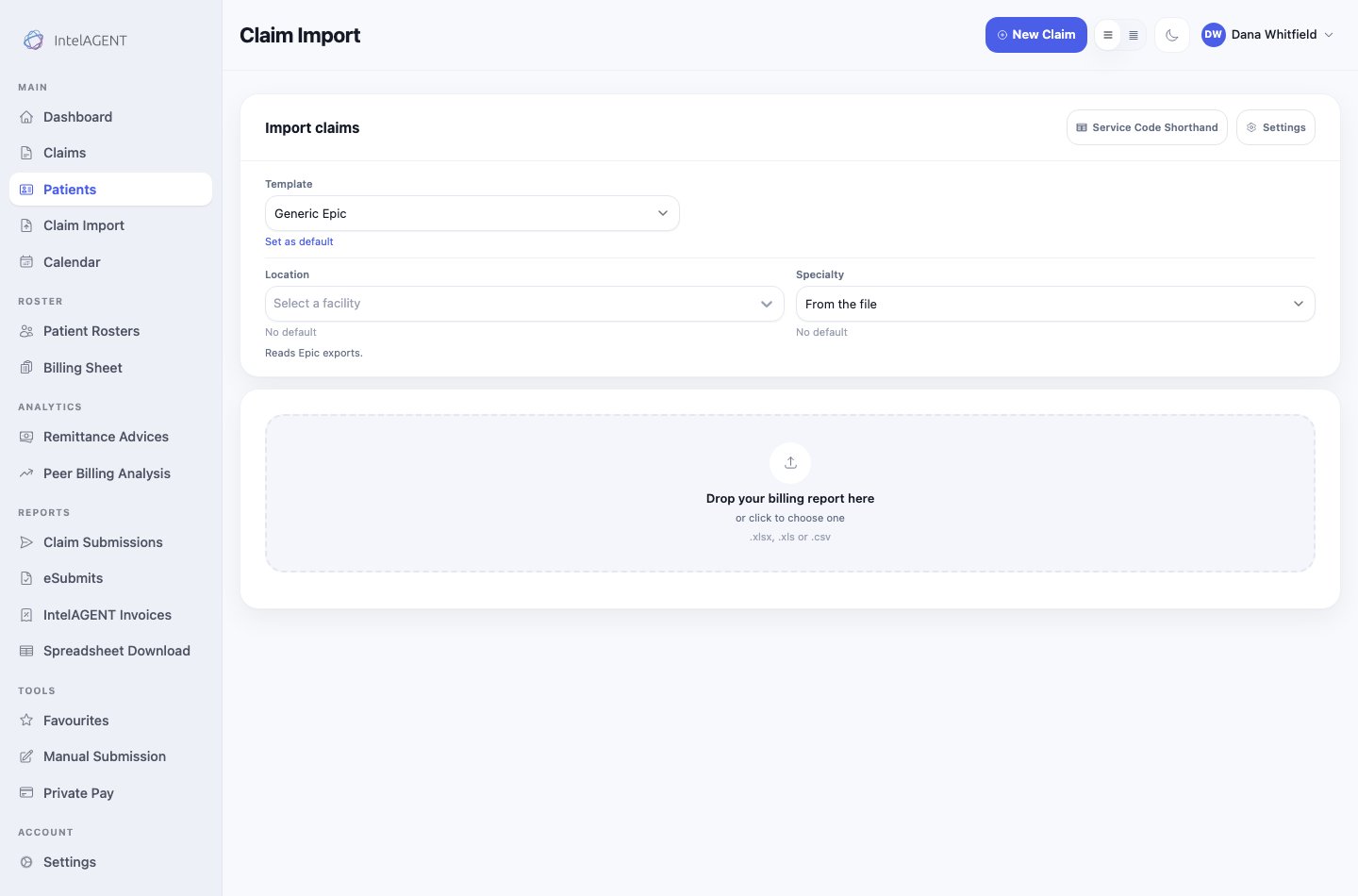 Pick the **Template** that matches where the file came from before you drop it:
| Template | Use it for |
| --------------------------------- | ---------------------------------------------------------------------------------------------------------------------------------------------- |
| Generic Epic | Epic exports, including the sticky-note column your codes live in |
| Generic Cerner | Cerner exports |
| Auto Detect / Create New Template | Anything else — IntelAGENT reads your column headings and asks you to confirm what it found, then saves the answer as a template you can reuse |
Password-protected exports work too. If the file is encrypted, you'll be asked
for the password after the drop — it's used on your computer and never sent
anywhere.
## Read what came back
Every row is turned into a claim and checked before you commit to anything.
Pick the **Template** that matches where the file came from before you drop it:
| Template | Use it for |
| --------------------------------- | ---------------------------------------------------------------------------------------------------------------------------------------------- |
| Generic Epic | Epic exports, including the sticky-note column your codes live in |
| Generic Cerner | Cerner exports |
| Auto Detect / Create New Template | Anything else — IntelAGENT reads your column headings and asks you to confirm what it found, then saves the answer as a template you can reuse |
Password-protected exports work too. If the file is encrypted, you'll be asked
for the password after the drop — it's used on your computer and never sent
anywhere.
## Read what came back
Every row is turned into a claim and checked before you commit to anything.
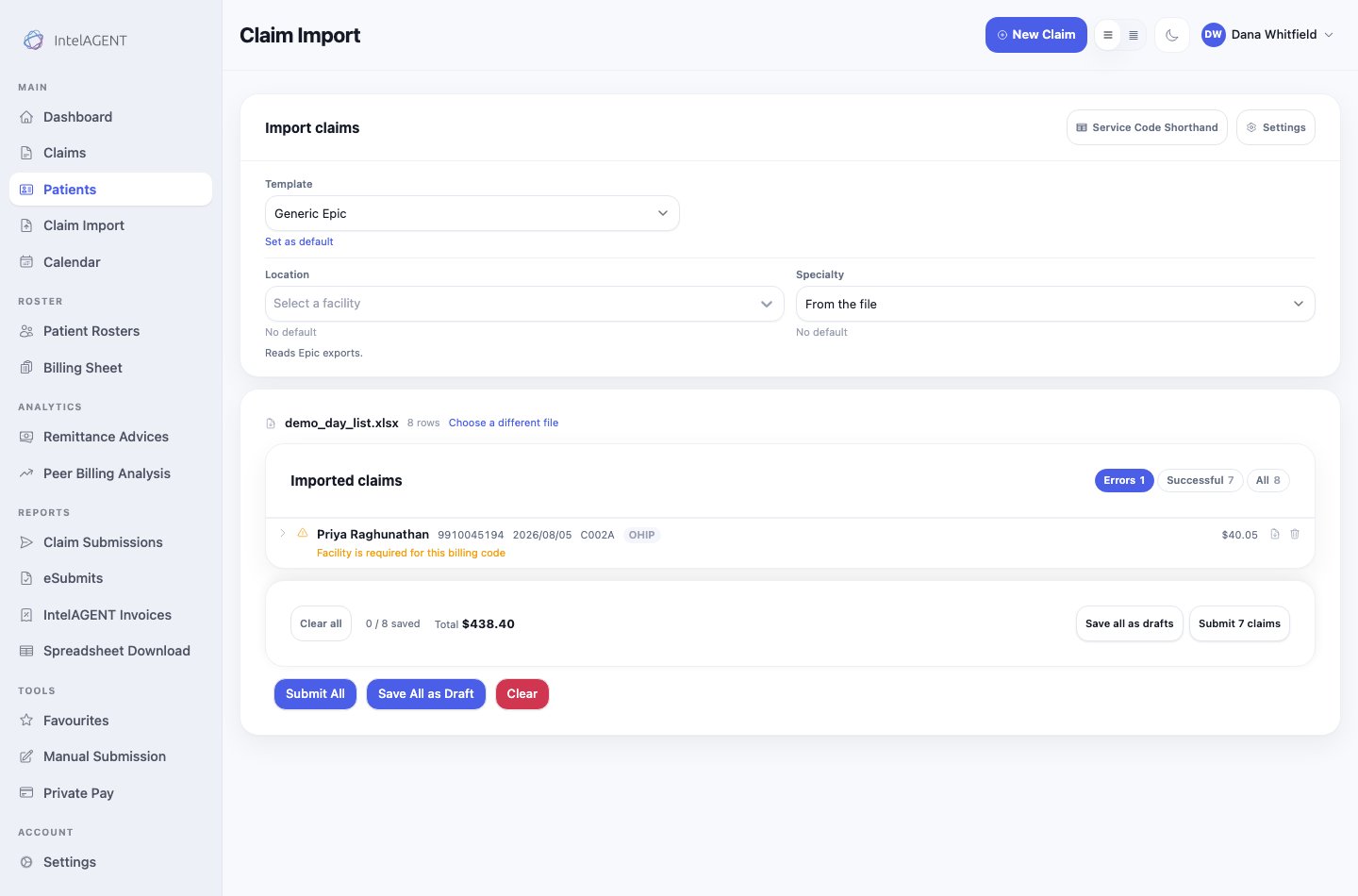 The three filters at the top right are the whole review workflow:
Start here. Each flagged row says what is wrong in plain words — *Facility is
required for this billing code*, *Diagnostic Code is required*. Open the row
and fix it in place.
Rows that need nothing from you. Worth a glance, not a review.
The full file, in the order it arrived.
The running total at the bottom is what the file is worth, so you can sanity-check
it against your own count before anything is sent.
## Send them
Two buttons, and the difference matters:
* **Save all as drafts** puts everything in Claims for later. Nothing goes to the
Ministry. Use this when you want a second look, or when you're missing
information you'll have tomorrow.
* **Submit N claims** sends only the rows that passed. A flagged row is never
submitted by accident — the count on the button is the number that will
actually go.
A row you can't fix today doesn't block the rest. Submit the ones that pass,
and the flagged rows stay put as drafts until you come back to them.
## When the columns don't line up
If names and codes come through blank, the template doesn't match your file.
Choose **Auto Detect / Create New Template** instead — it reads your file's own
headings, shows you what it thinks each column is, and lets you correct it. Save
that mapping once and every future export from the same system reads correctly.
The three filters at the top right are the whole review workflow:
Start here. Each flagged row says what is wrong in plain words — *Facility is
required for this billing code*, *Diagnostic Code is required*. Open the row
and fix it in place.
Rows that need nothing from you. Worth a glance, not a review.
The full file, in the order it arrived.
The running total at the bottom is what the file is worth, so you can sanity-check
it against your own count before anything is sent.
## Send them
Two buttons, and the difference matters:
* **Save all as drafts** puts everything in Claims for later. Nothing goes to the
Ministry. Use this when you want a second look, or when you're missing
information you'll have tomorrow.
* **Submit N claims** sends only the rows that passed. A flagged row is never
submitted by accident — the count on the button is the number that will
actually go.
A row you can't fix today doesn't block the rest. Submit the ones that pass,
and the flagged rows stay put as drafts until you come back to them.
## When the columns don't line up
If names and codes come through blank, the template doesn't match your file.
Choose **Auto Detect / Create New Template** instead — it reads your file's own
headings, shows you what it thinks each column is, and lets you correct it. Save
that mapping once and every future export from the same system reads correctly.