> ## Documentation Index
> Fetch the complete documentation index at: https://docs.intelagent.ca/llms.txt
> Use this file to discover all available pages before exploring further.
# Set up a patient roster
> Build a recurring patient group once, then bill it in seconds every visit
A roster is a group of patients you see together and bill together — a
long-term care floor, a hospital service, a weekly clinic. Set it up once and
billing the whole group becomes a few clicks instead of a claim each.
## Create it
Open **Patient Rosters** and choose **New**.
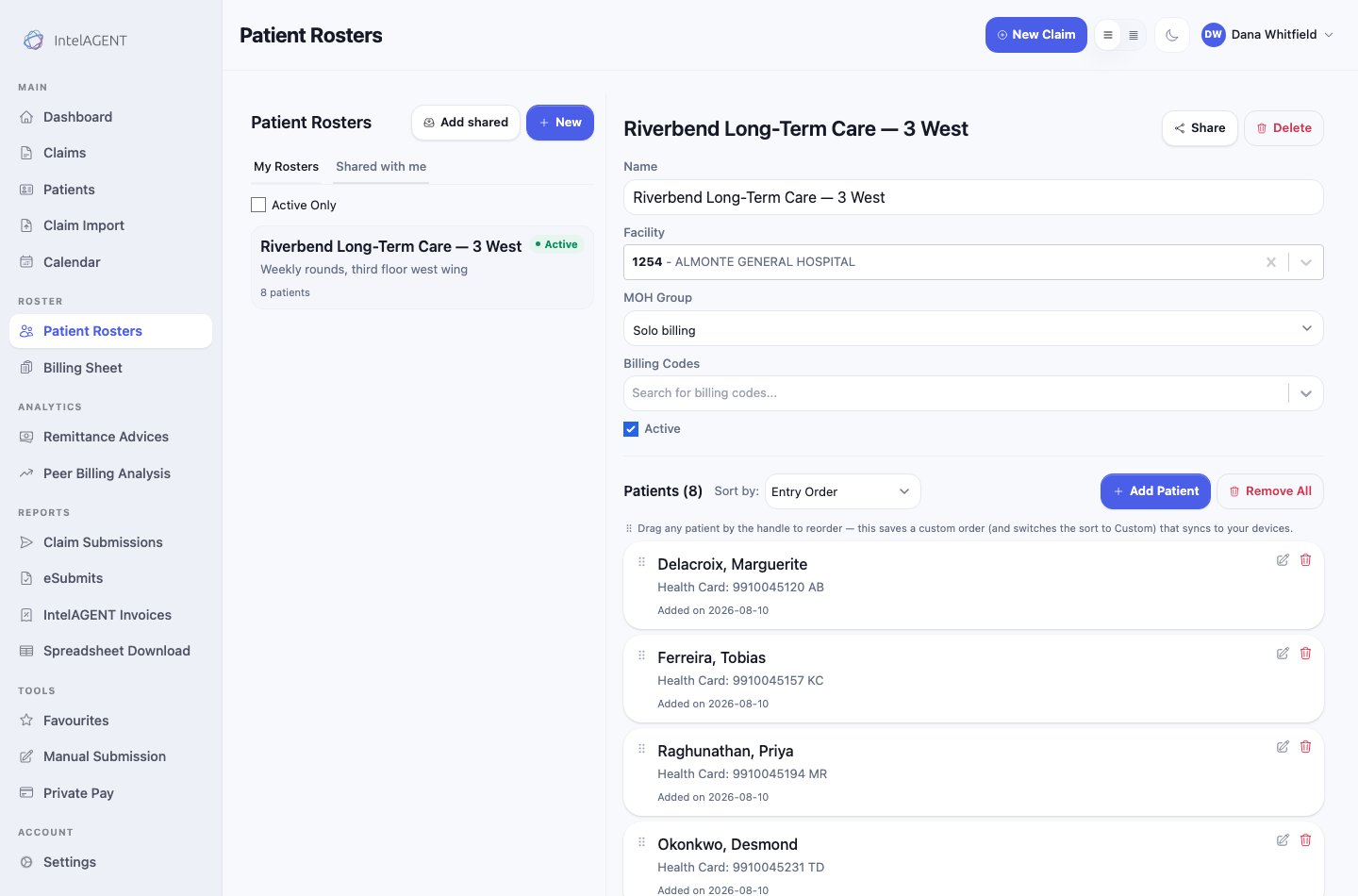 Four settings sit above the patient list, and they are what make billing fast
later — they become the defaults for every claim you raise from this roster:
| Setting | What it does |
| ----------------- | --------------------------------------------------------------------------------------------------------- |
| **Name** | What you'll recognise it by. Be specific — "3 West" beats "LTC". |
| **Facility** | The location these visits happen at. Fills in the facility on every claim. |
| **MOH Group** | Which group these claims bill under. **Solo billing** if you bill under your own number. |
| **Billing Codes** | The codes you usually bill this group. Pre-selected on the billing sheet, and still editable per patient. |
Set the billing codes to what you bill *most* visits, not every visit. They're a
starting point you adjust, so the common case should need no work.
## Add patients
**Add Patient** takes a health card and fills in the rest. Each patient shows
their health card and version code, and the date they were added.
Two per-patient defaults are worth knowing about, set with the pencil icon on a
row:
* **Admission date** — carried onto claims that need one, so you aren't
re-entering it every visit.
* **Diagnostic code** — this patient's usual diagnosis, pre-filled when they have
no prior claim to copy from.
Both are per-roster: the same patient can carry different defaults in two
different rosters.
## Put them in the order you round in
Drag any patient by the handle on the left to reorder the list. The order is
saved and syncs to your other devices, so the billing sheet lists patients in the
order you actually walk the floor rather than alphabetically.
The **Sort by** control switches between entry order, alphabetical, and the
custom order your dragging created.
## Keeping it current
* **Active** controls whether the roster shows up by default. Uncheck it for a
service you've finished rather than deleting the history.
* **Remove All** clears the patients but keeps the roster and its settings — the
right move when a ward turns over completely.
* **Share** hands a copy to a colleague. See
[Sharing rosters](/docs/web-app/rosters/sharing-rosters).
## Next
With the roster built, [bill the whole group for a visit](/docs/guides/roster-billing).
Four settings sit above the patient list, and they are what make billing fast
later — they become the defaults for every claim you raise from this roster:
| Setting | What it does |
| ----------------- | --------------------------------------------------------------------------------------------------------- |
| **Name** | What you'll recognise it by. Be specific — "3 West" beats "LTC". |
| **Facility** | The location these visits happen at. Fills in the facility on every claim. |
| **MOH Group** | Which group these claims bill under. **Solo billing** if you bill under your own number. |
| **Billing Codes** | The codes you usually bill this group. Pre-selected on the billing sheet, and still editable per patient. |
Set the billing codes to what you bill *most* visits, not every visit. They're a
starting point you adjust, so the common case should need no work.
## Add patients
**Add Patient** takes a health card and fills in the rest. Each patient shows
their health card and version code, and the date they were added.
Two per-patient defaults are worth knowing about, set with the pencil icon on a
row:
* **Admission date** — carried onto claims that need one, so you aren't
re-entering it every visit.
* **Diagnostic code** — this patient's usual diagnosis, pre-filled when they have
no prior claim to copy from.
Both are per-roster: the same patient can carry different defaults in two
different rosters.
## Put them in the order you round in
Drag any patient by the handle on the left to reorder the list. The order is
saved and syncs to your other devices, so the billing sheet lists patients in the
order you actually walk the floor rather than alphabetically.
The **Sort by** control switches between entry order, alphabetical, and the
custom order your dragging created.
## Keeping it current
* **Active** controls whether the roster shows up by default. Uncheck it for a
service you've finished rather than deleting the history.
* **Remove All** clears the patients but keeps the roster and its settings — the
right move when a ward turns over completely.
* **Share** hands a copy to a colleague. See
[Sharing rosters](/docs/web-app/rosters/sharing-rosters).
## Next
With the roster built, [bill the whole group for a visit](/docs/guides/roster-billing).