> ## Documentation Index
> Fetch the complete documentation index at: https://docs.intelagent.ca/llms.txt
> Use this file to discover all available pages before exploring further.
# Fix a rejected claim
> Find what the Ministry refused or paid short, correct it, and send it back
The Claims screen is where a claim's whole life is visible — from a draft you
haven't sent to a payment that landed. Most days you only need one part of it:
the claims that need something from you.
## Filter to what needs attention
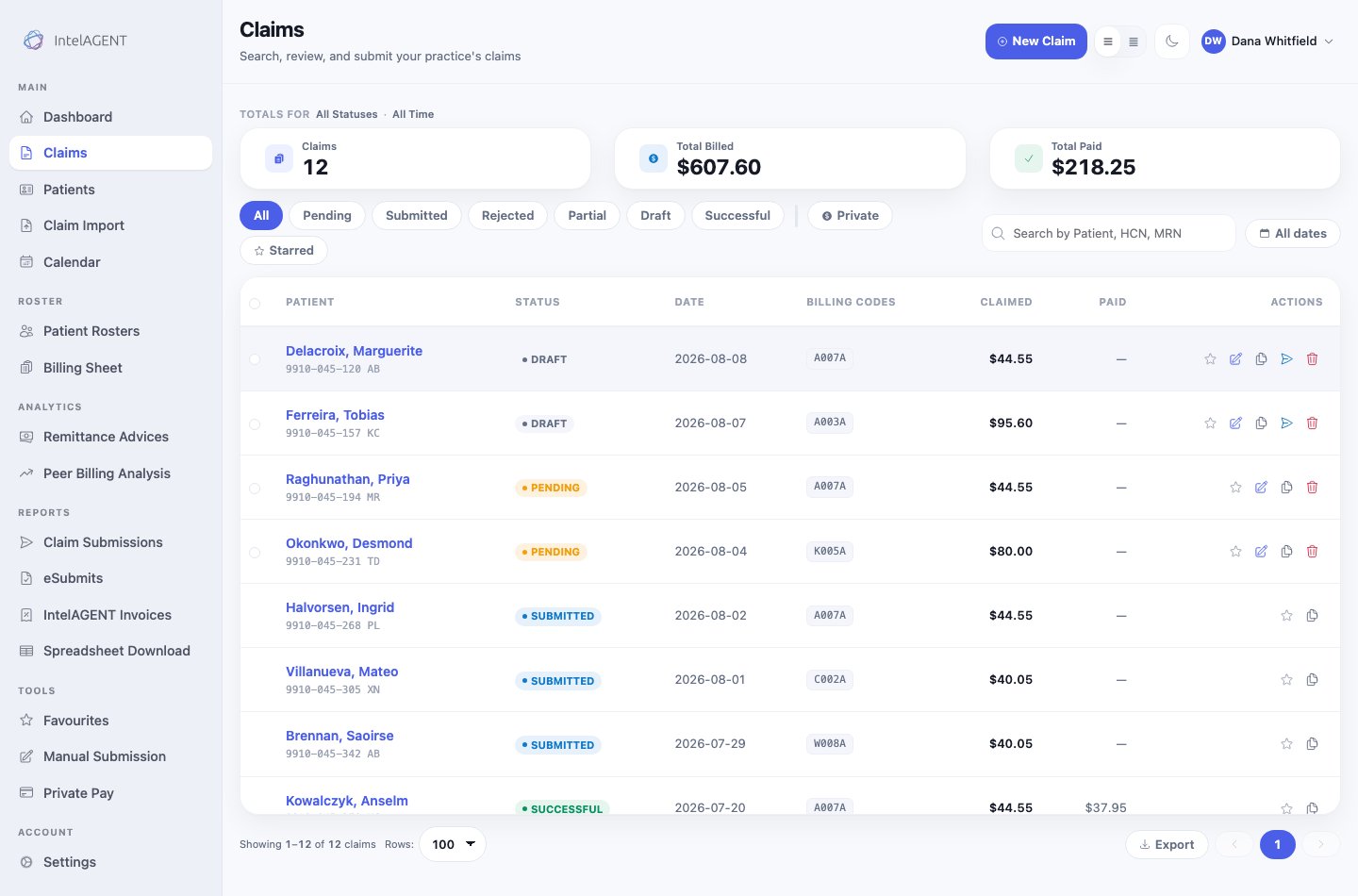 The status chips across the top are the fastest way in. Each status means
something specific:
| Status | What it means | Can you still edit it? |
| -------------- | -------------------------------------------------------- | ------------------------------------------------------------------------------------- |
| **Draft** | Saved but never sent. | Yes |
| **Pending** | Queued to go to the Ministry on the next submission run. | Yes |
| **Submitted** | Sent. Waiting on the Ministry's answer. | No |
| **Rejected** | The Ministry refused it, with a reason. | Fix and resubmit |
| **Partial** | Paid, but for less than you claimed. | [Ask for a reassessment](#remittance-advice-inquiry-rai-ask-the-ministry-to-reassess) |
| **Successful** | Paid in full. | No |
The three totals above the list — **Claims**, **Total Billed**, **Total Paid** —
follow whichever filter you have on, so filtering to Rejected tells you what the
rejections are costing you.
## Find one claim
Use the search box for a patient name, health card number or MRN. The date
control beside it narrows to a period. They combine, so you can search one
patient within one month.
## Act on a row
The icons at the right of each row are the actions available for that claim's
status. An editable claim (draft or pending) offers more than a submitted one,
which is deliberate — a claim already with the Ministry can't be quietly changed.
* **Star** flags a claim so you can find it again with the Starred filter.
* **Edit** opens the claim to change codes, dates or diagnosis.
* **Copy** starts a new claim from this one, which is the quick way to bill a
repeat visit.
* **Delete** removes a claim that hasn't been sent.
## Fixing a rejection
Filter to **Rejected** and open the claim. The rejection reason comes from the
Ministry and names what it objected to — a diagnosis that doesn't go with the
code, a service date outside the patient's eligibility, a missing referring
physician. Correct that field and resubmit; the claim goes back into the queue as
pending.
If the same rejection keeps recurring across patients, it's usually a setting
rather than a claim. Check the service code's requirements before fixing them
one at a time.
## Remittance Advice Inquiry (RAI) - Ask the Ministry to reassess
A claim that was processed on the Remittance Advice can't be submitted — the
Ministry has already ruled on it. To dispute that ruling you file a **Remittance
Advice Inquiry** (RAI), which goes to the Ministry electronically as an eSubmit.
| What happened | What to do |
| ---------------------------------------------- | ------------------------------ |
| Refused with an error code, nothing paid | Correct the claim and resubmit |
| Paid, but less than you billed | RAI — **Under Payment** |
| Paid more than you billed | RAI — **Over Payment** |
| Paid the right amount against the wrong detail | RAI — **Correction** |
### Start from the claim
Open the claim. **Remittance Advice Inquiry** sits in the header next to Edit
Claim, and only appears once a remittance advice has come back for that claim —
until then there is no assessment to inquire about.
The status chips across the top are the fastest way in. Each status means
something specific:
| Status | What it means | Can you still edit it? |
| -------------- | -------------------------------------------------------- | ------------------------------------------------------------------------------------- |
| **Draft** | Saved but never sent. | Yes |
| **Pending** | Queued to go to the Ministry on the next submission run. | Yes |
| **Submitted** | Sent. Waiting on the Ministry's answer. | No |
| **Rejected** | The Ministry refused it, with a reason. | Fix and resubmit |
| **Partial** | Paid, but for less than you claimed. | [Ask for a reassessment](#remittance-advice-inquiry-rai-ask-the-ministry-to-reassess) |
| **Successful** | Paid in full. | No |
The three totals above the list — **Claims**, **Total Billed**, **Total Paid** —
follow whichever filter you have on, so filtering to Rejected tells you what the
rejections are costing you.
## Find one claim
Use the search box for a patient name, health card number or MRN. The date
control beside it narrows to a period. They combine, so you can search one
patient within one month.
## Act on a row
The icons at the right of each row are the actions available for that claim's
status. An editable claim (draft or pending) offers more than a submitted one,
which is deliberate — a claim already with the Ministry can't be quietly changed.
* **Star** flags a claim so you can find it again with the Starred filter.
* **Edit** opens the claim to change codes, dates or diagnosis.
* **Copy** starts a new claim from this one, which is the quick way to bill a
repeat visit.
* **Delete** removes a claim that hasn't been sent.
## Fixing a rejection
Filter to **Rejected** and open the claim. The rejection reason comes from the
Ministry and names what it objected to — a diagnosis that doesn't go with the
code, a service date outside the patient's eligibility, a missing referring
physician. Correct that field and resubmit; the claim goes back into the queue as
pending.
If the same rejection keeps recurring across patients, it's usually a setting
rather than a claim. Check the service code's requirements before fixing them
one at a time.
## Remittance Advice Inquiry (RAI) - Ask the Ministry to reassess
A claim that was processed on the Remittance Advice can't be submitted — the
Ministry has already ruled on it. To dispute that ruling you file a **Remittance
Advice Inquiry** (RAI), which goes to the Ministry electronically as an eSubmit.
| What happened | What to do |
| ---------------------------------------------- | ------------------------------ |
| Refused with an error code, nothing paid | Correct the claim and resubmit |
| Paid, but less than you billed | RAI — **Under Payment** |
| Paid more than you billed | RAI — **Over Payment** |
| Paid the right amount against the wrong detail | RAI — **Correction** |
### Start from the claim
Open the claim. **Remittance Advice Inquiry** sits in the header next to Edit
Claim, and only appears once a remittance advice has come back for that claim —
until then there is no assessment to inquire about.
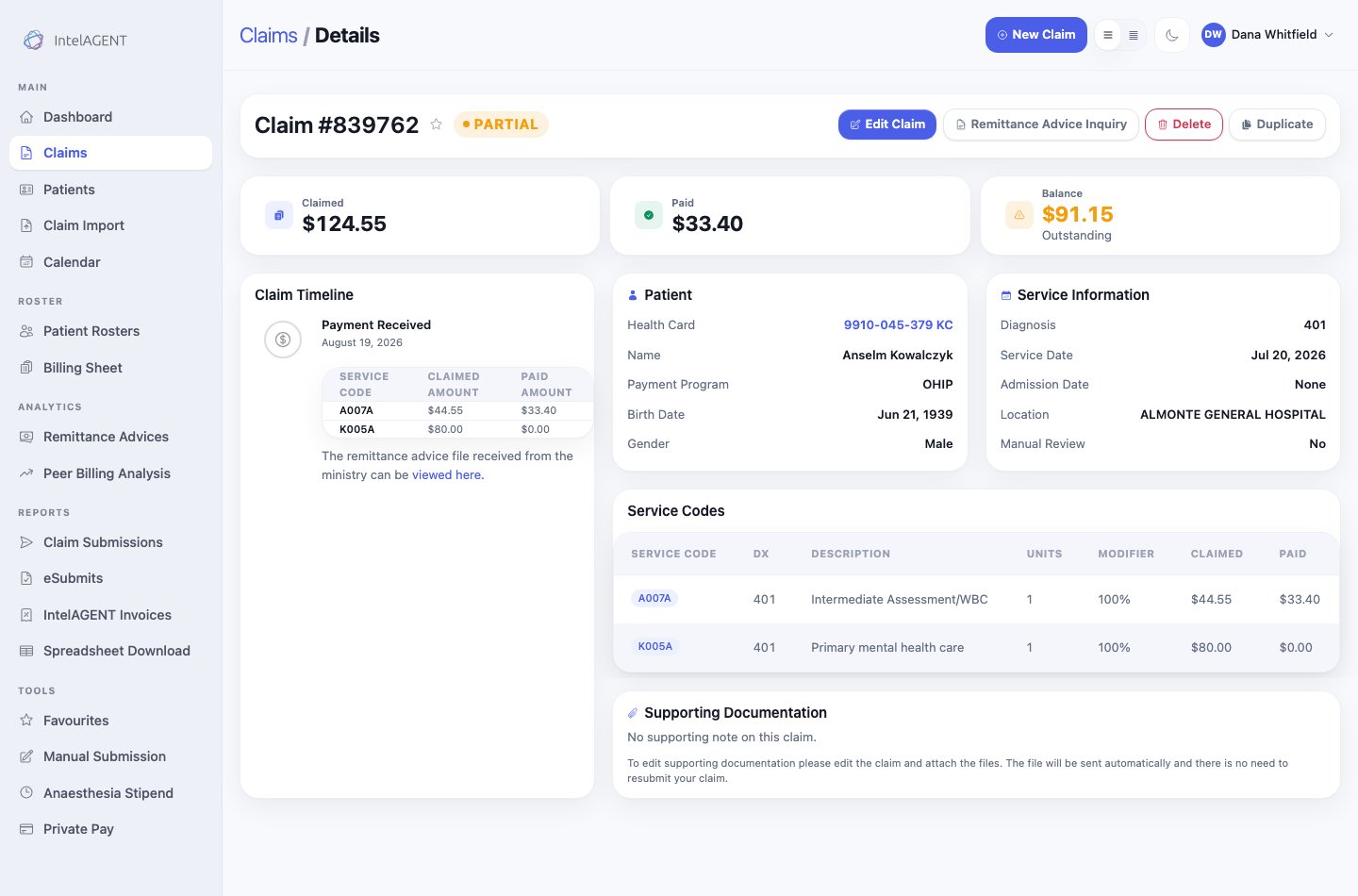 The three tiles at the top are the case you are making: **Claimed** is what you
billed, **Paid** is what arrived, and **Balance** is what you're asking about.
The Service Codes table below breaks the same difference out line by line, which
is the level the RAI works at.
### Fill in the inquiry
The three tiles at the top are the case you are making: **Claimed** is what you
billed, **Paid** is what arrived, and **Balance** is what you're asking about.
The Service Codes table below breaks the same difference out line by line, which
is the level the RAI works at.
### Fill in the inquiry
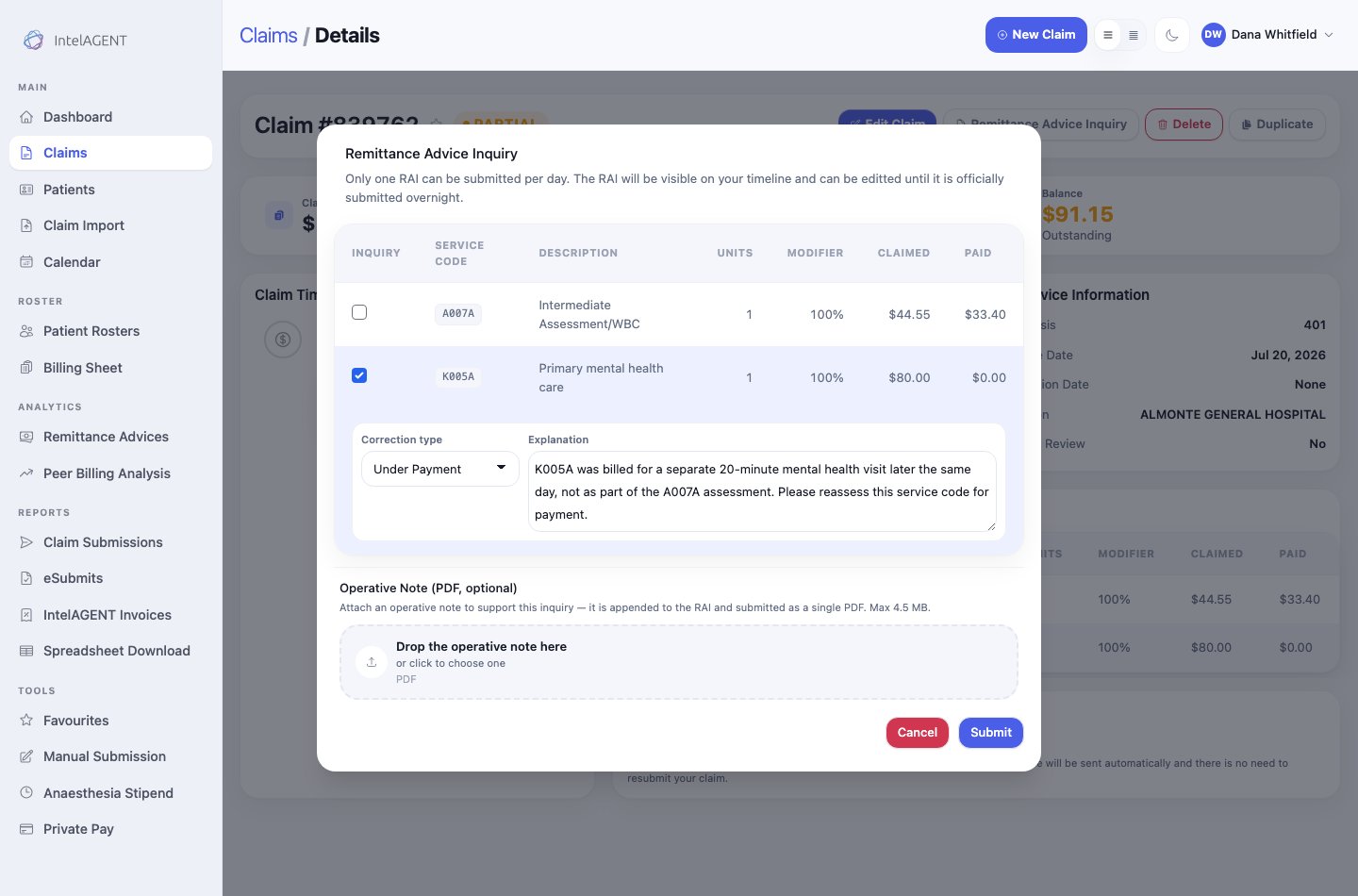 1. **Tick the lines you're inquiring about.** Only ticked lines go on the RAI —
a line that was paid correctly should stay unticked, or you invite the
assessor to look at it again.
2. **Choose a correction type.** Under Payment, Over Payment or Correction, per
the table above.
3. **Write the explanation.** A person at the Ministry reads this. Say what was
done, why the code applies, and what you want reassessed.
4. **Attach an operative note** if the service needs supporting evidence. PDF
only, under 4.5 MB — it's merged into the RAI and submitted as one file, and
OHIP caps the whole thing at 5 MB. If the claim already carries a note, that
one is attached automatically and the dialog says so.
5. **Submit.**
Name the service code in the explanation and keep it to the facts of the
visit. "K005A was billed for a separate 20-minute mental health visit later
the same day, not as part of the A007A assessment" gives the assessor
something to act on; "please pay this" does not.
### After you submit
Only one RAI can be submitted per day. It goes out on the overnight submission
run, and until then it sits on the claim's timeline as pending.
1. **Tick the lines you're inquiring about.** Only ticked lines go on the RAI —
a line that was paid correctly should stay unticked, or you invite the
assessor to look at it again.
2. **Choose a correction type.** Under Payment, Over Payment or Correction, per
the table above.
3. **Write the explanation.** A person at the Ministry reads this. Say what was
done, why the code applies, and what you want reassessed.
4. **Attach an operative note** if the service needs supporting evidence. PDF
only, under 4.5 MB — it's merged into the RAI and submitted as one file, and
OHIP caps the whole thing at 5 MB. If the claim already carries a note, that
one is attached automatically and the dialog says so.
5. **Submit.**
Name the service code in the explanation and keep it to the facts of the
visit. "K005A was billed for a separate 20-minute mental health visit later
the same day, not as part of the A007A assessment" gives the assessor
something to act on; "please pay this" does not.
### After you submit
Only one RAI can be submitted per day. It goes out on the overnight submission
run, and until then it sits on the claim's timeline as pending.
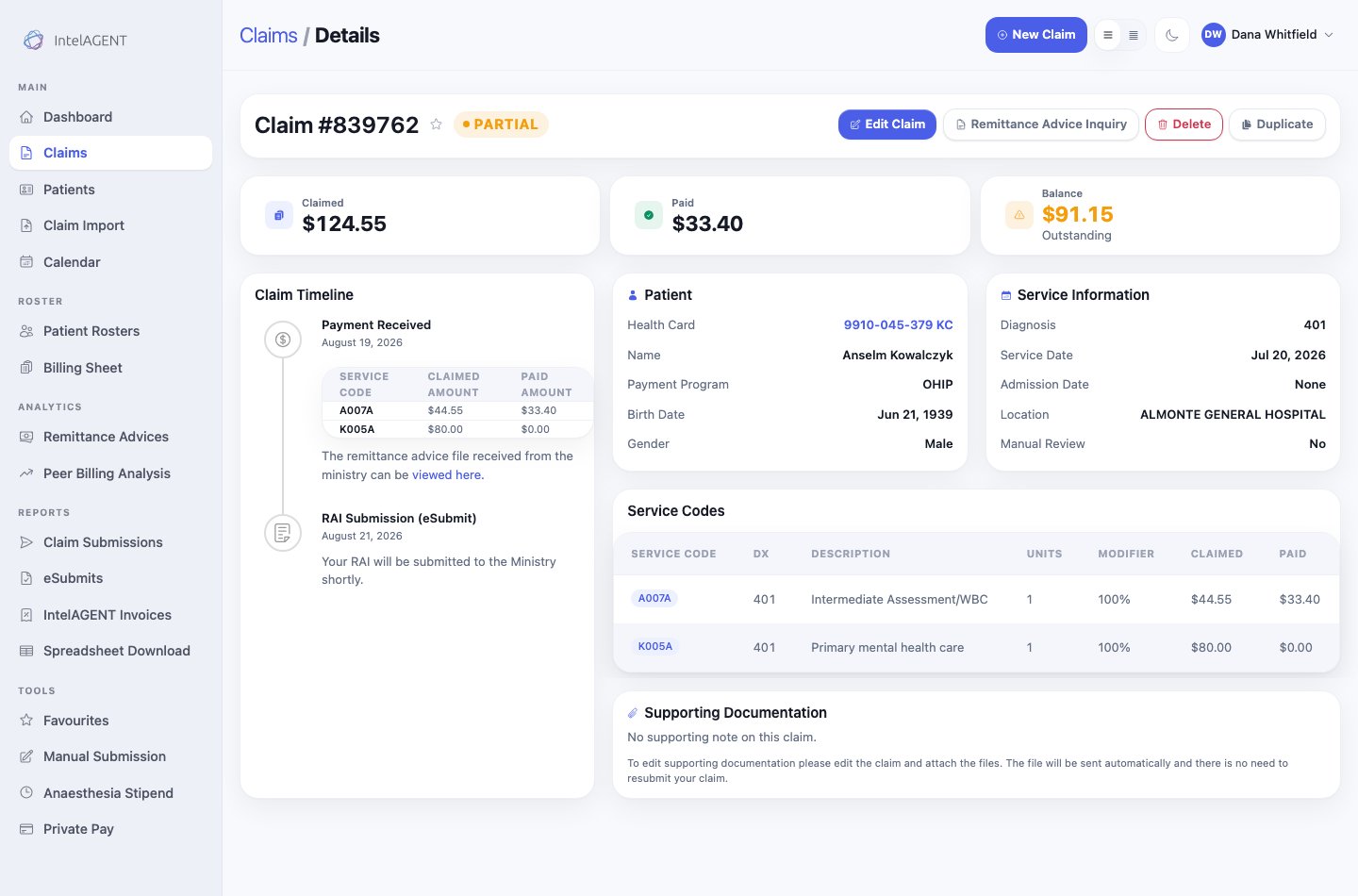 Once it has gone, the same entry carries the Ministry's ticket number for the
adjudication. When the decision comes back it lands underneath as **Ministry
Response** — or as **Additional Information Requested** if they want
documentation before deciding.
Once it has gone, the same entry carries the Ministry's ticket number for the
adjudication. When the decision comes back it lands underneath as **Ministry
Response** — or as **Additional Information Requested** if they want
documentation before deciding.
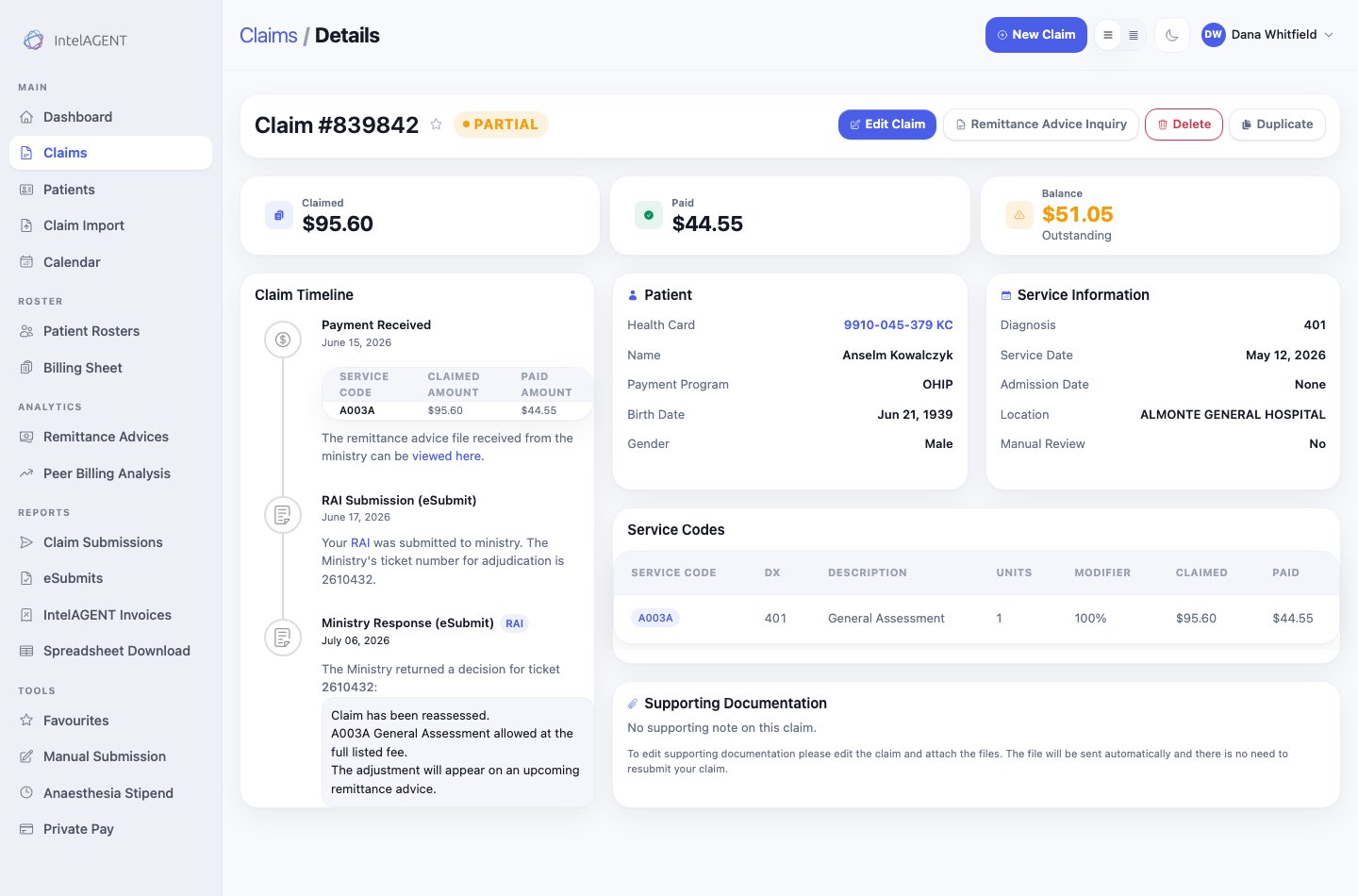 A successful reassessment doesn't change the claim on the spot. The money
arrives on a later remittance advice, and the claim's Paid total moves when that
RA is processed.
### Track every inquiry in one place
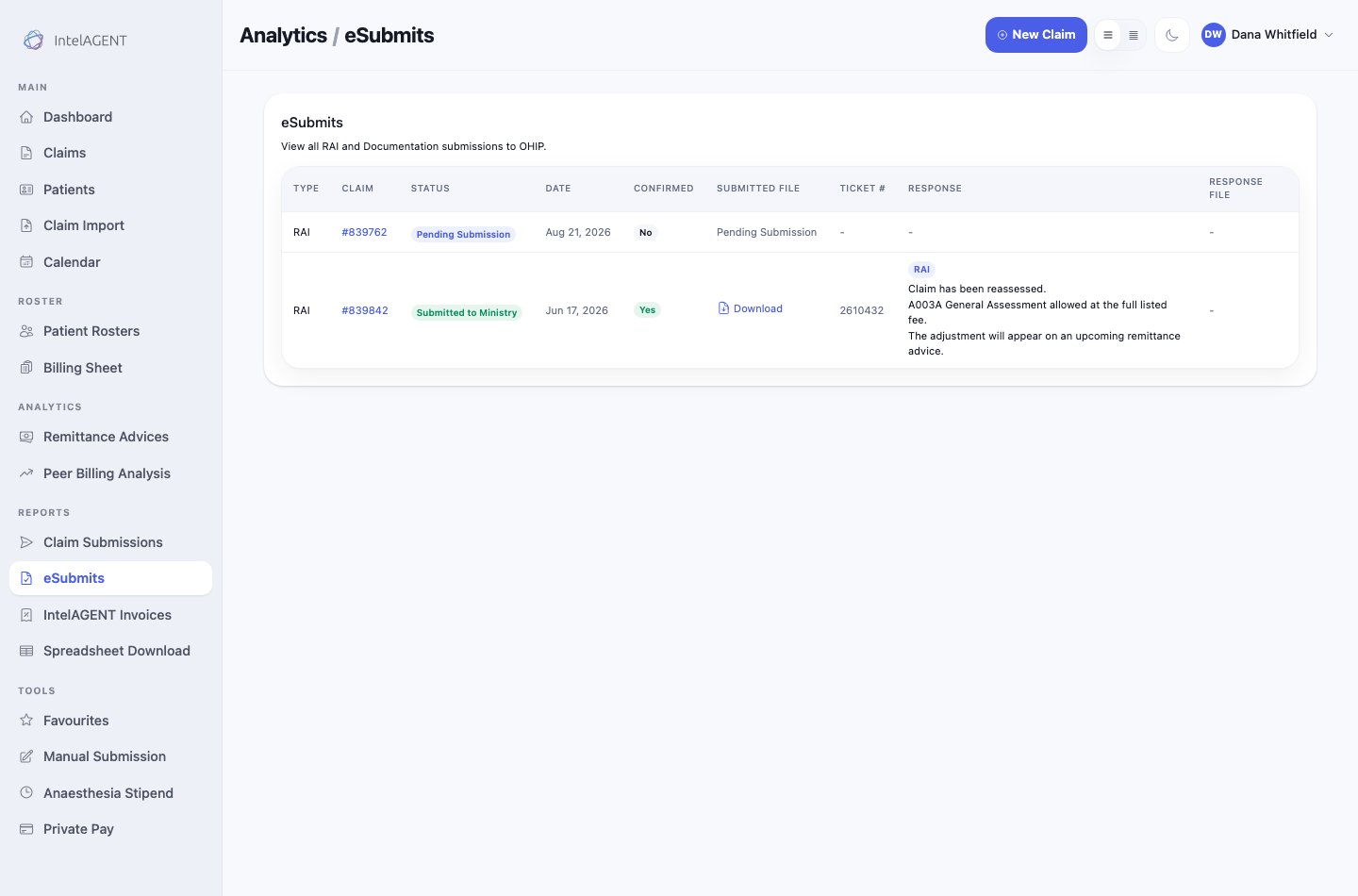
**Reports** > **eSubmits** lists every RAI and documentation submission you've
made, with its status, ticket number, and the Ministry's response.
A successful reassessment doesn't change the claim on the spot. The money
arrives on a later remittance advice, and the claim's Paid total moves when that
RA is processed.
### Track every inquiry in one place
**Reports** > **eSubmits** lists every RAI and documentation submission you've
made, with its status, ticket number, and the Ministry's response.