> ## Documentation Index
> Fetch the complete documentation index at: https://docs.intelagent.ca/llms.txt
> Use this file to discover all available pages before exploring further.
# Bill a whole roster for a visit
> Turn a day of rounds into claims for the entire patient group at once
Once a roster exists, billing a day of rounds is one screen: pick the roster,
pick the date, apply the codes, submit.
**Before you start:** a roster with its patients in it. See
[Set up a patient roster](/docs/guides/create-a-roster).
## Pick the roster and the date
Open **Billing Sheet** and choose your roster. The **Service Date (All Claims)**
at the top right applies to every claim on the sheet — set it once for the day
you rounded, not per patient.
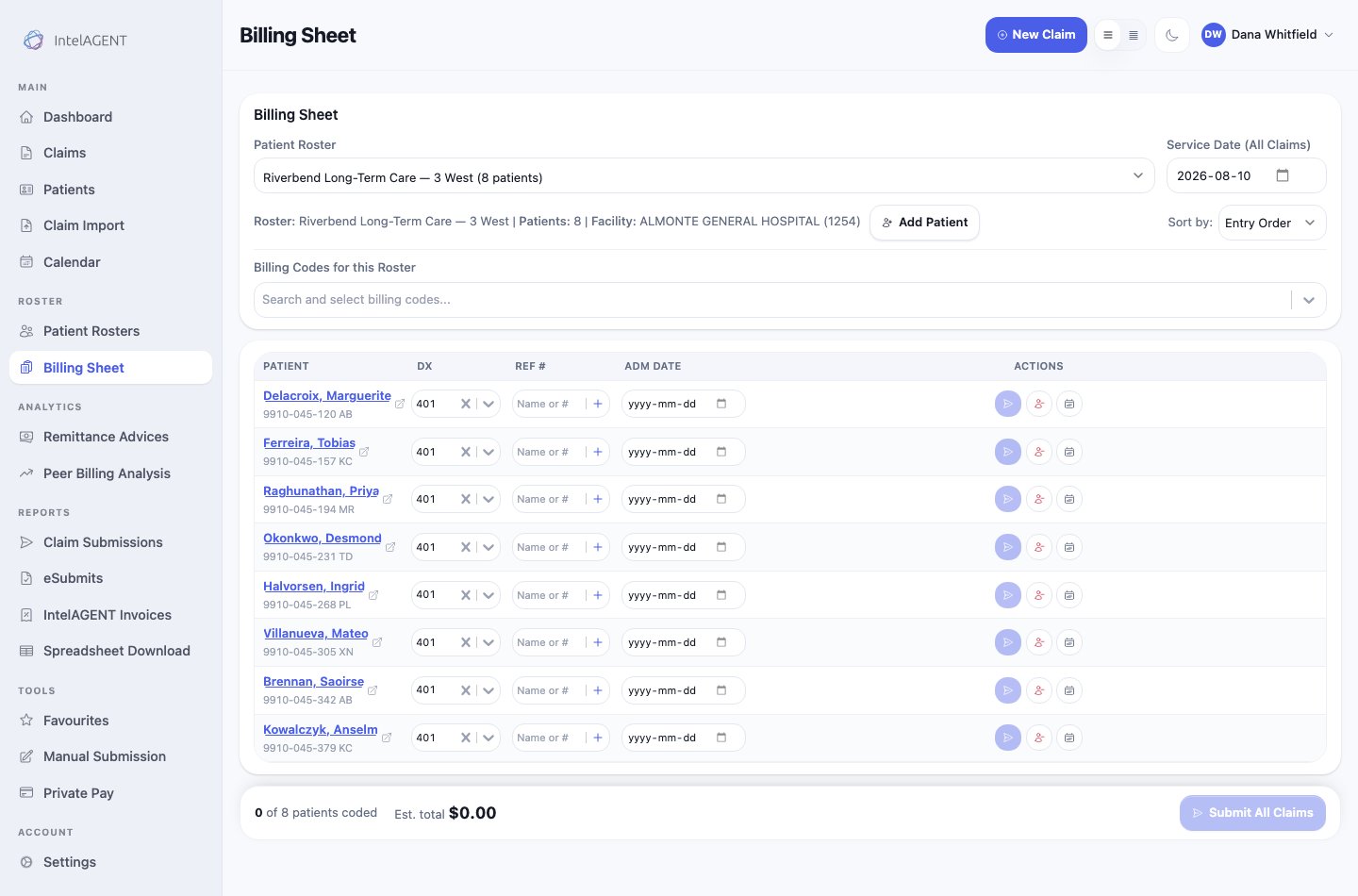 The line under the picker confirms what you're billing — roster name, patient
count, and the facility the claims will carry.
## Apply the codes
**Billing Codes for this Roster** applies codes across the sheet, so the common
case is one action rather than eight. The roster's saved codes are already
here; add or remove for today's particular visit.
Each row then carries what's specific to that patient:
| Column | What it's for |
| ------------ | -------------------------------------------------------------------------------- |
| **DX** | The diagnosis. Pre-filled from the patient's roster default or their last claim. |
| **REF #** | The referring physician, where the code requires one. |
| **ADM DATE** | Admission date, where the code requires one. |
The counter at the bottom — **N of 8 patients coded** — is the check that
matters. It tells you how many rows are actually billable, and the estimated
total beside it is what the day is worth.
A patient you didn't see today simply gets no codes. Uncoded rows aren't
submitted, so there's no need to remove anyone from the roster for a day they
were off the floor.
## Submit
**Submit All Claims** sends every coded row. Patients with no codes are skipped.
Each row also has its own actions if you'd rather handle one patient
individually — submit that patient alone, or open the full claim form when a
visit needs more than the sheet can express.
## Where they go
Submitted claims land in **Claims** as pending, then move to submitted on the
next run to the Ministry. To confirm the day went through, filter Claims to your
service date.
Anything the Ministry refuses shows up there too — see
[Fix a rejected claim](/docs/guides/find-and-fix-claims).
Rounding order beats alphabetical order. Drag patients into the order you
actually walk the floor on the roster screen — the billing sheet follows that
order, so you're coding down the page in the same sequence you saw people.
The line under the picker confirms what you're billing — roster name, patient
count, and the facility the claims will carry.
## Apply the codes
**Billing Codes for this Roster** applies codes across the sheet, so the common
case is one action rather than eight. The roster's saved codes are already
here; add or remove for today's particular visit.
Each row then carries what's specific to that patient:
| Column | What it's for |
| ------------ | -------------------------------------------------------------------------------- |
| **DX** | The diagnosis. Pre-filled from the patient's roster default or their last claim. |
| **REF #** | The referring physician, where the code requires one. |
| **ADM DATE** | Admission date, where the code requires one. |
The counter at the bottom — **N of 8 patients coded** — is the check that
matters. It tells you how many rows are actually billable, and the estimated
total beside it is what the day is worth.
A patient you didn't see today simply gets no codes. Uncoded rows aren't
submitted, so there's no need to remove anyone from the roster for a day they
were off the floor.
## Submit
**Submit All Claims** sends every coded row. Patients with no codes are skipped.
Each row also has its own actions if you'd rather handle one patient
individually — submit that patient alone, or open the full claim form when a
visit needs more than the sheet can express.
## Where they go
Submitted claims land in **Claims** as pending, then move to submitted on the
next run to the Ministry. To confirm the day went through, filter Claims to your
service date.
Anything the Ministry refuses shows up there too — see
[Fix a rejected claim](/docs/guides/find-and-fix-claims).
Rounding order beats alphabetical order. Drag patients into the order you
actually walk the floor on the roster screen — the billing sheet follows that
order, so you're coding down the page in the same sequence you saw people.