> ## Documentation Index
> Fetch the complete documentation index at: https://docs.intelagent.ca/llms.txt
> Use this file to discover all available pages before exploring further.
# Team & Access
> Invite delegates to help manage your billing, and control what they can see and do
## Overview
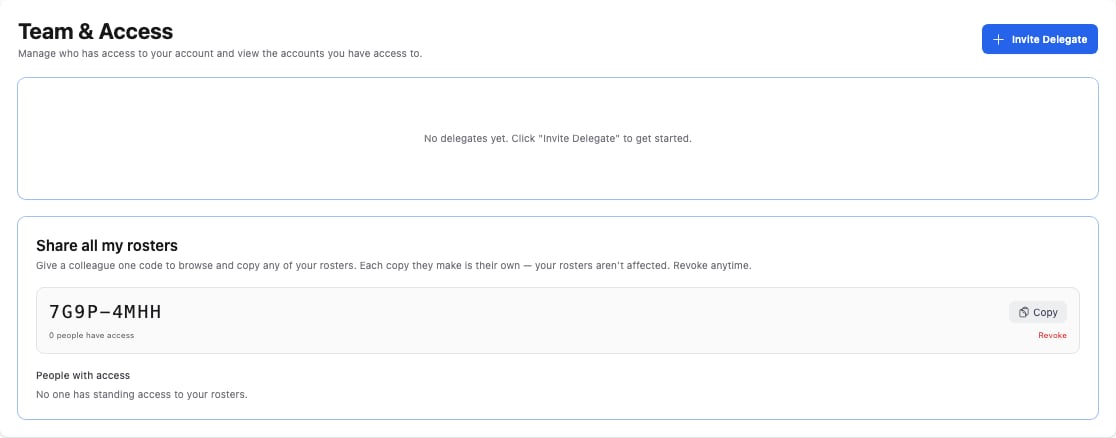
**Team & Access** is where you invite **delegates** — colleagues or billing staff who can work in your account on your behalf. You control what each delegate can do (their role) and which claims they can see (their scope), and you can suspend or remove their access at any time.
This is also where you can [share all your rosters](/docs/web-app/rosters/sharing-rosters) with a single code.
## Accessing Team & Access
Go to **Settings → Team & Access**.
 ## Inviting a delegate
From **Settings → Team & Access**, click **Invite Delegate**.
Enter the email address of the person you're inviting.
Assign one or more **roles**. A delegate's roles determine what they're allowed to do in your account.
Choose what the delegate can access:
* **Facilities** — grant access to **all** facilities, or select **specific** facilities.
* **MOH groups** — grant access to **all** billing (MOH) groups, or select **specific** ones.
Leave both on **all** for full access, or narrow them for a multi-location or multi-group practice.
Send the invite. The delegate receives an email to accept it, and appears in your delegates list as **Pending** until they accept.
## Delegate status
Each delegate shows a status:
| Status | Meaning |
| ------------- | ---------------------------------------------- |
| **Pending** | Invited, but hasn't accepted yet |
| **Active** | Accepted and currently has access |
| **Suspended** | Access temporarily turned off; can be restored |
## Managing delegates
Use the menu (⋮) next to a delegate to:
* **Edit** — change their roles, facility scope, or MOH group scope.
* **Resend invitation** — send the invite email again (for a pending delegate).
* **Suspend** — temporarily turn off access without removing them.
* **Restore** — re-enable a suspended delegate.
* **Remove** — permanently remove their access.
Toggle **Show revoked** to include suspended and removed delegates in the list.
Suspending or removing a delegate takes effect immediately — they lose access to your account right away.
## Share all your rosters
The same page has a **Share all my rosters** section, giving one code that lets a colleague browse and copy any of your rosters. See [Sharing Rosters](/docs/web-app/rosters/sharing-rosters) for details.
## Best practices
* **Least privilege** — give a delegate only the roles and scope they need.
* **Scope by facility or group** — for multi-location practices, restrict delegates to the facilities or MOH groups they actually work with.
* **Review regularly** — audit your delegates periodically and remove anyone who no longer needs access.
## Inviting a delegate
From **Settings → Team & Access**, click **Invite Delegate**.
Enter the email address of the person you're inviting.
Assign one or more **roles**. A delegate's roles determine what they're allowed to do in your account.
Choose what the delegate can access:
* **Facilities** — grant access to **all** facilities, or select **specific** facilities.
* **MOH groups** — grant access to **all** billing (MOH) groups, or select **specific** ones.
Leave both on **all** for full access, or narrow them for a multi-location or multi-group practice.
Send the invite. The delegate receives an email to accept it, and appears in your delegates list as **Pending** until they accept.
## Delegate status
Each delegate shows a status:
| Status | Meaning |
| ------------- | ---------------------------------------------- |
| **Pending** | Invited, but hasn't accepted yet |
| **Active** | Accepted and currently has access |
| **Suspended** | Access temporarily turned off; can be restored |
## Managing delegates
Use the menu (⋮) next to a delegate to:
* **Edit** — change their roles, facility scope, or MOH group scope.
* **Resend invitation** — send the invite email again (for a pending delegate).
* **Suspend** — temporarily turn off access without removing them.
* **Restore** — re-enable a suspended delegate.
* **Remove** — permanently remove their access.
Toggle **Show revoked** to include suspended and removed delegates in the list.
Suspending or removing a delegate takes effect immediately — they lose access to your account right away.
## Share all your rosters
The same page has a **Share all my rosters** section, giving one code that lets a colleague browse and copy any of your rosters. See [Sharing Rosters](/docs/web-app/rosters/sharing-rosters) for details.
## Best practices
* **Least privilege** — give a delegate only the roles and scope they need.
* **Scope by facility or group** — for multi-location practices, restrict delegates to the facilities or MOH groups they actually work with.
* **Review regularly** — audit your delegates periodically and remove anyone who no longer needs access.