> ## Documentation Index
> Fetch the complete documentation index at: https://docs.intelagent.ca/llms.txt
> Use this file to discover all available pages before exploring further.
# Sharing Rosters
> Share a patient roster with a colleague using a share code
## Overview
Roster sharing lets you hand a patient list to a colleague with a short **share code**. Sharing makes a **copy** — whoever redeems the code gets their own independent roster they can edit, and **your roster isn't affected**. Codes can be reused, never expire, and can be revoked at any time.
Only the **patient list** (names and health numbers) is shared. A roster's **billing codes are not** included.
Rosters live on the **Patient List** page, in the **Patient Rosters** panel on the left. From here you can share your own rosters and redeem rosters shared with you.
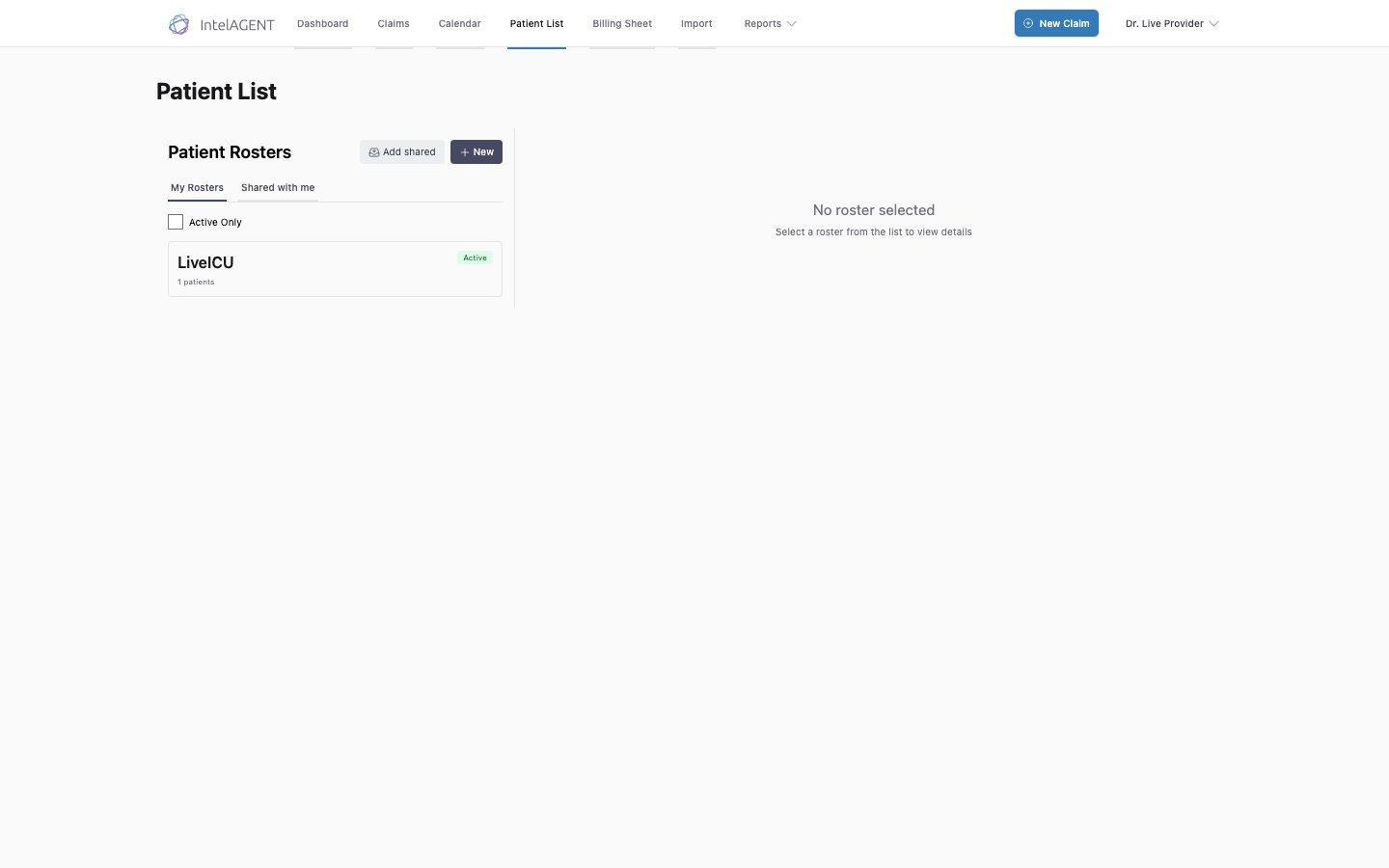 There are two ways to share:
* **One roster** — a code that copies a single roster into whoever redeems it.
* **All your rosters** — one code that grants a colleague standing access to browse and pull *any* of your rosters, now and in the future (managed in **Settings → Team & Access**).
## Sharing one roster
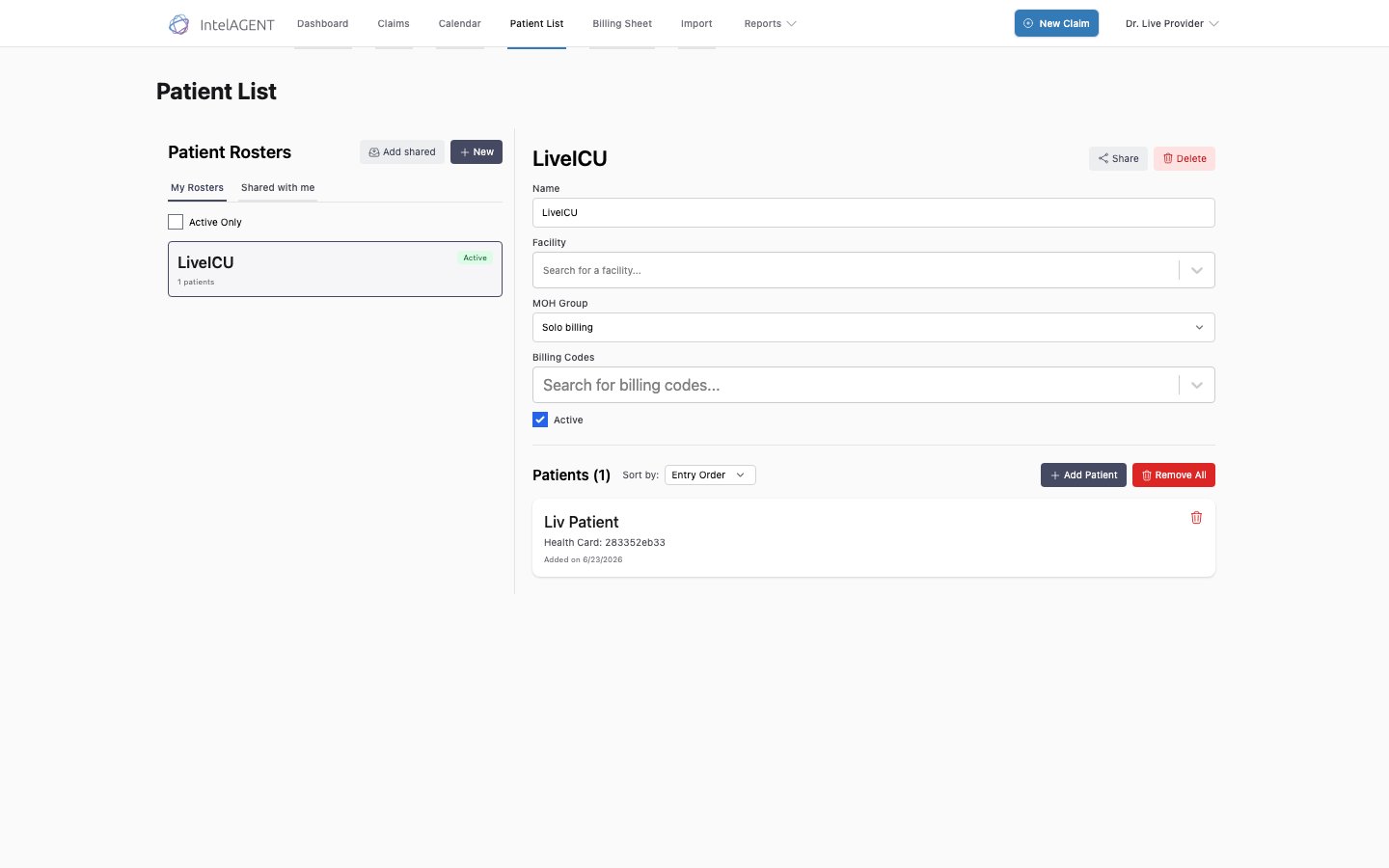
On the **Patient List** page, select the roster you want to share from the **Patient Rosters** panel. Its details open on the right, with **Share** and **Delete** buttons in the top corner.
There are two ways to share:
* **One roster** — a code that copies a single roster into whoever redeems it.
* **All your rosters** — one code that grants a colleague standing access to browse and pull *any* of your rosters, now and in the future (managed in **Settings → Team & Access**).
## Sharing one roster
On the **Patient List** page, select the roster you want to share from the **Patient Rosters** panel. Its details open on the right, with **Share** and **Delete** buttons in the top corner.
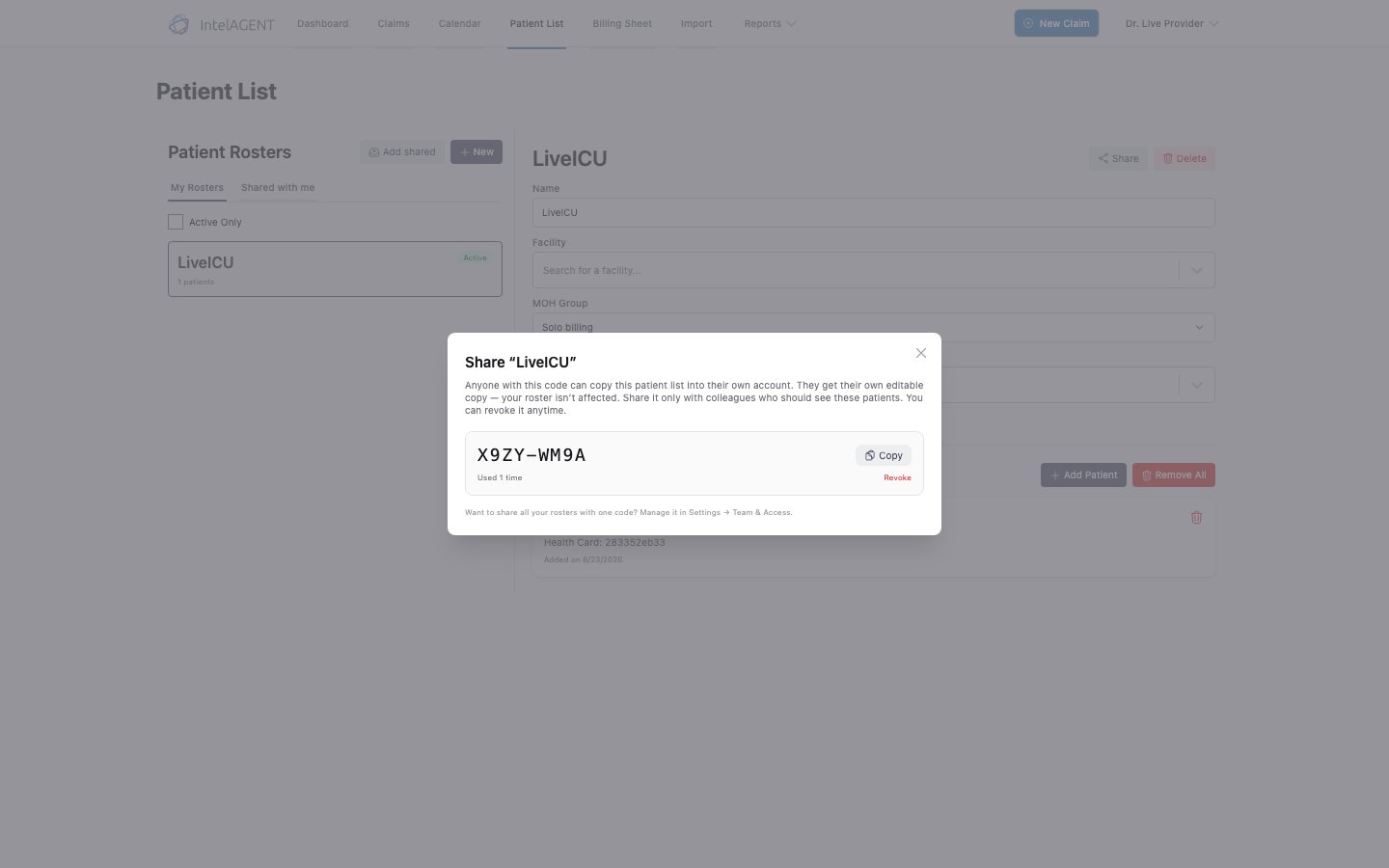
 Click **Share**. A code is generated — click **Copy** to copy it, and send it to your colleague. The dialog shows how many times the code has been used, and a **Revoke** link to disable it.
 ## Receiving a shared roster
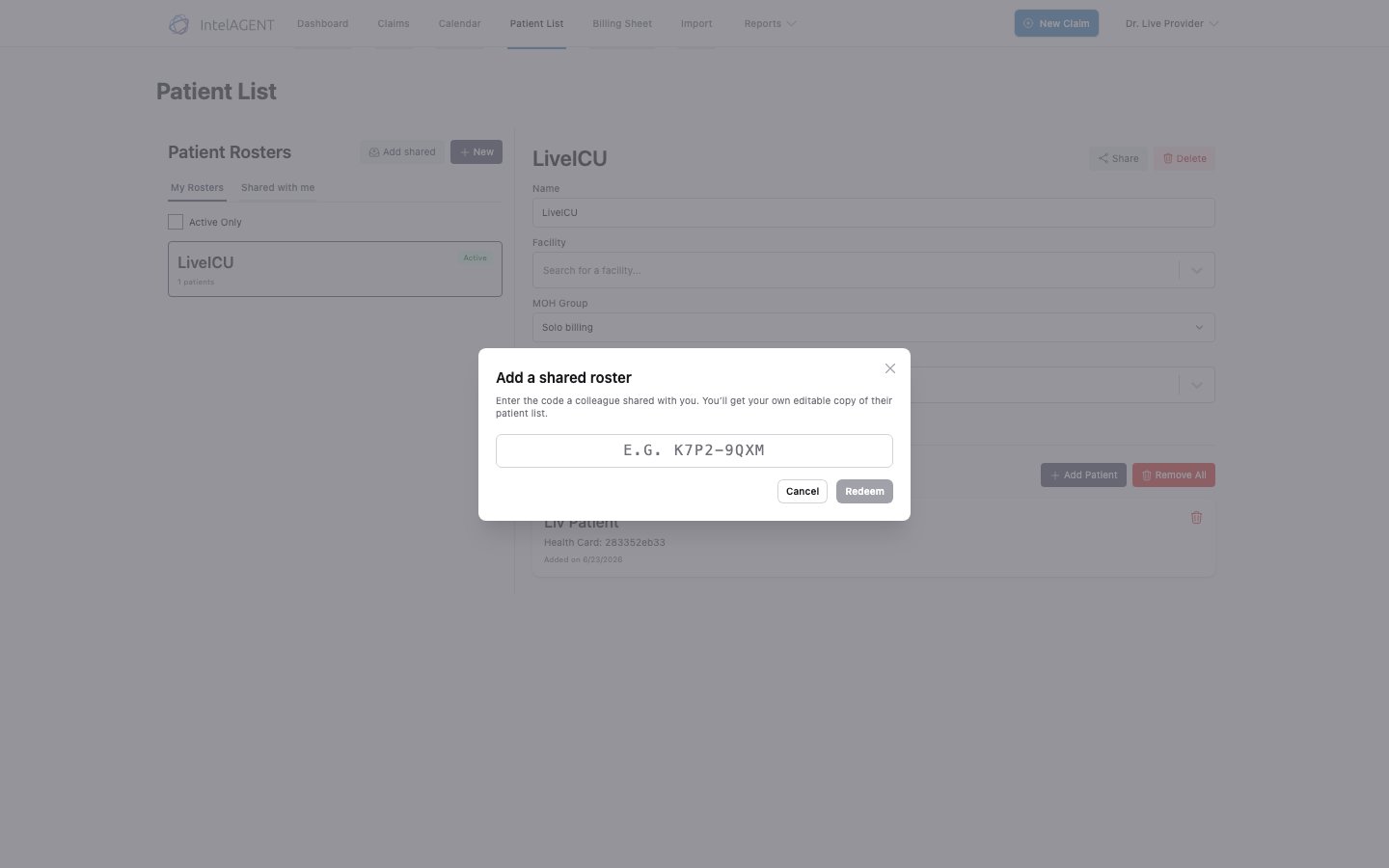
In the **Patient Rosters** panel, click **Add shared**.
Type the code your colleague sent you and click **Redeem**. You get your own editable copy of their patient list, and it appears under **My Rosters**.
## Receiving a shared roster
In the **Patient Rosters** panel, click **Add shared**.
Type the code your colleague sent you and click **Redeem**. You get your own editable copy of their patient list, and it appears under **My Rosters**.
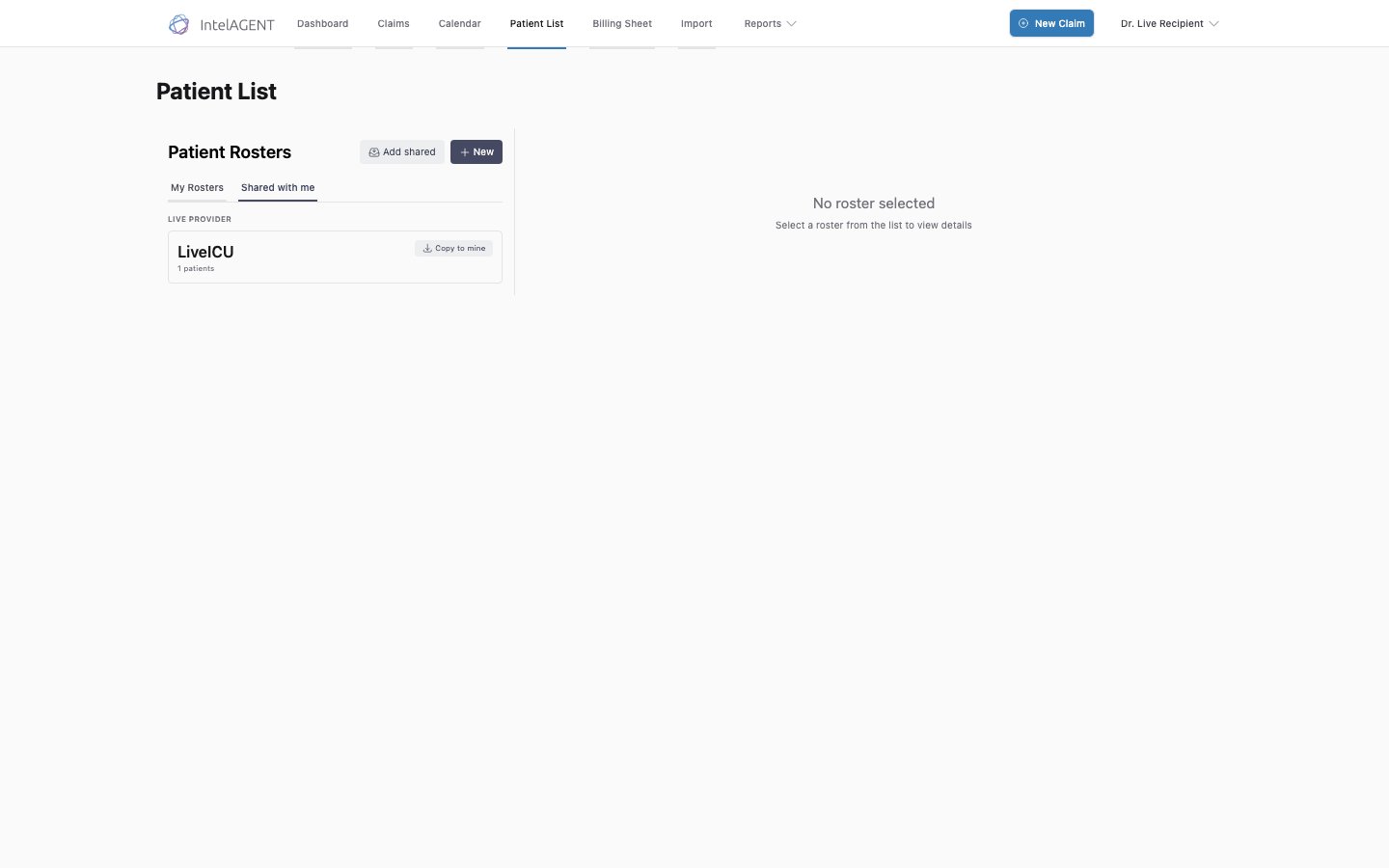
 If a colleague shared **all** their rosters with you, they appear under the **Shared with me** tab, where you can browse and pull any of them into your account:
 ## Sharing all your rosters
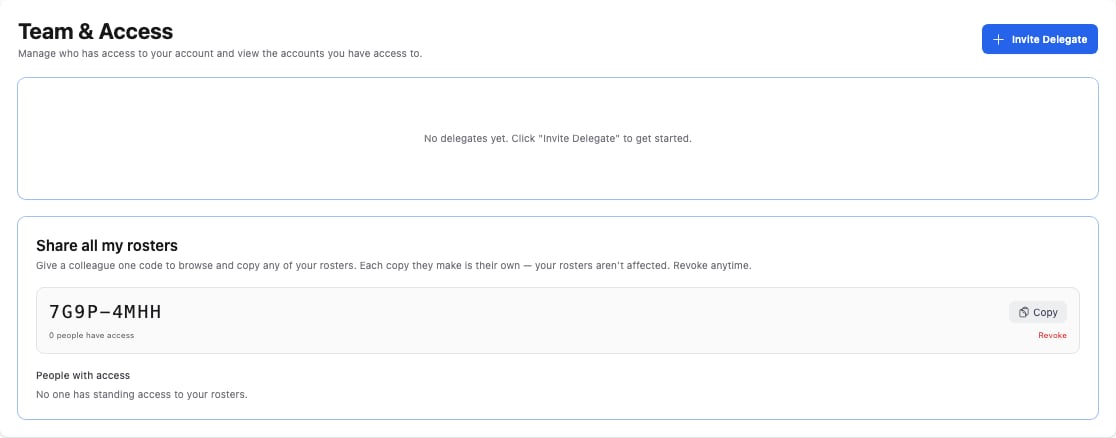
To give a colleague standing access to every roster with a single code, go to **Settings → Team & Access** and use **Share all my rosters**. One code lets them browse and copy any of your rosters — each copy they make is their own, and your rosters aren't affected. **People with access** lists everyone who has redeemed it, and you can **Revoke** the code at any time.
## Sharing all your rosters
To give a colleague standing access to every roster with a single code, go to **Settings → Team & Access** and use **Share all my rosters**. One code lets them browse and copy any of your rosters — each copy they make is their own, and your rosters aren't affected. **People with access** lists everyone who has redeemed it, and you can **Revoke** the code at any time.
 ## Revoking access
* **Revoking a single-roster code** stops it from being redeemed again. Copies already made are unaffected — they're the other person's own rosters now.
* **Revoking an "all rosters" code** removes standing access for everyone who redeemed it.
Sharing works the same way in the **mobile app**, and share codes are interchangeable between web and mobile. See [Sharing Rosters](/docs/mobile-app/rosters/sharing-rosters) under the Mobile App section.
## Notes
* Redeeming a code gives you a **snapshot copy** at that moment. Later changes to the original roster don't sync to your copy (and vice-versa).
* You can't redeem your own code.
* Health numbers and patient details are handled the same secure way as everywhere else in the app.
## Revoking access
* **Revoking a single-roster code** stops it from being redeemed again. Copies already made are unaffected — they're the other person's own rosters now.
* **Revoking an "all rosters" code** removes standing access for everyone who redeemed it.
Sharing works the same way in the **mobile app**, and share codes are interchangeable between web and mobile. See [Sharing Rosters](/docs/mobile-app/rosters/sharing-rosters) under the Mobile App section.
## Notes
* Redeeming a code gives you a **snapshot copy** at that moment. Later changes to the original roster don't sync to your copy (and vice-versa).
* You can't redeem your own code.
* Health numbers and patient details are handled the same secure way as everywhere else in the app.