> ## Documentation Index
> Fetch the complete documentation index at: https://docs.intelagent.ca/llms.txt
> Use this file to discover all available pages before exploring further.
# Updating Your Bank Account
> Add or update the bank account for your William Osler reimbursements, on desktop and mobile
## Overview
William Osler physicians are reimbursed by **EFT** to a bank account on file. You can add or update that account yourself — on the **web portal** or the **mobile app** — and verify it with a small test deposit.
Self-service bank-account updating is available to physicians enrolled in the **William Osler Hospital Reimbursement** program. If you don't see these options, contact IntelAGENT support.
### How verification works
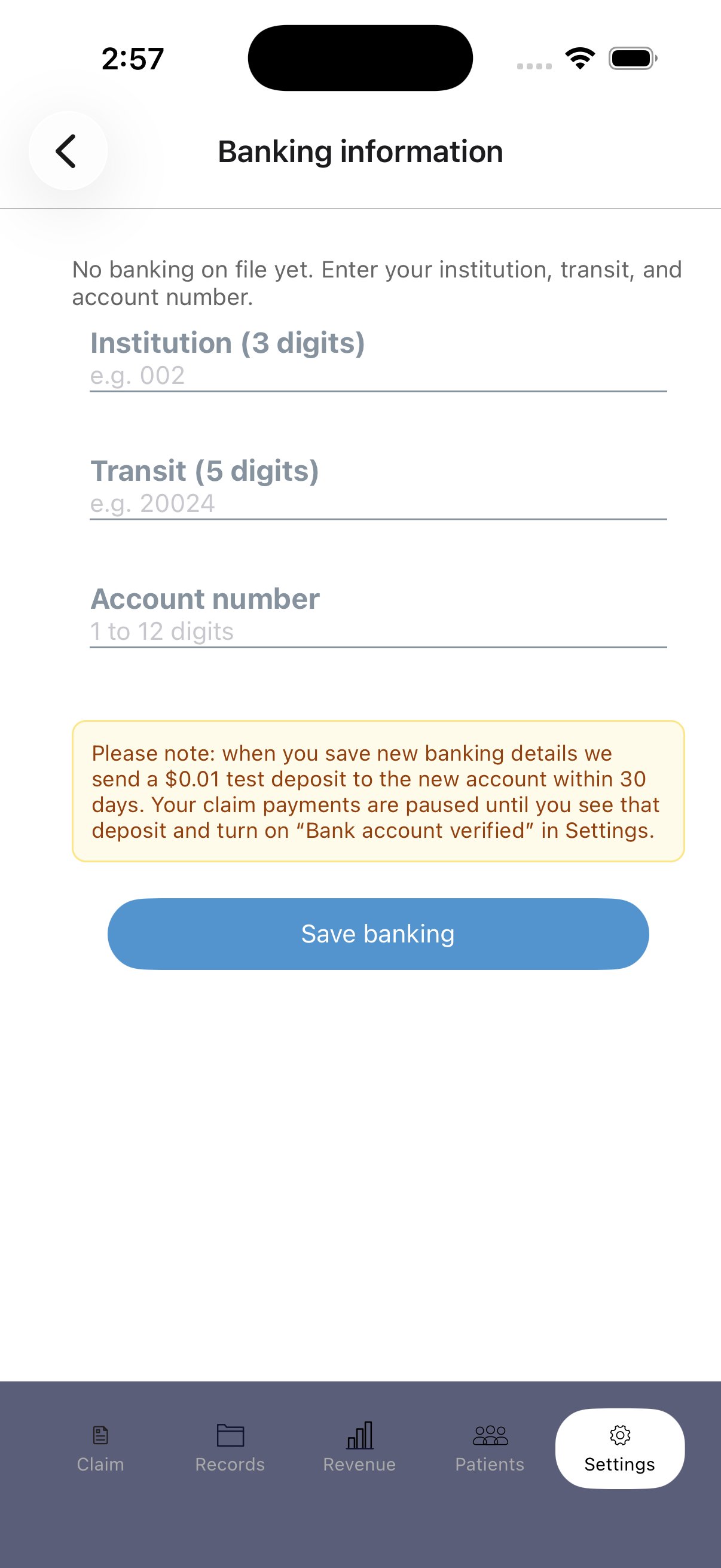
Whenever you save **new** banking details, we send a **\$0.01 test deposit** to that account (it can take up to 30 days to appear). Your reimbursements are **paused** until you see the deposit and turn on **Bank account verified**. You can turn verification off at any time — for example, if your banking information changes.
Real payments are only sent while **Bank account verified** is on. If you change your account, verification resets and you'll need to confirm the new test deposit before payments resume.
## Updating your bank account
Go to **Settings**. William Osler physicians see a **WOHS Bank Account & Reimbursement** section.
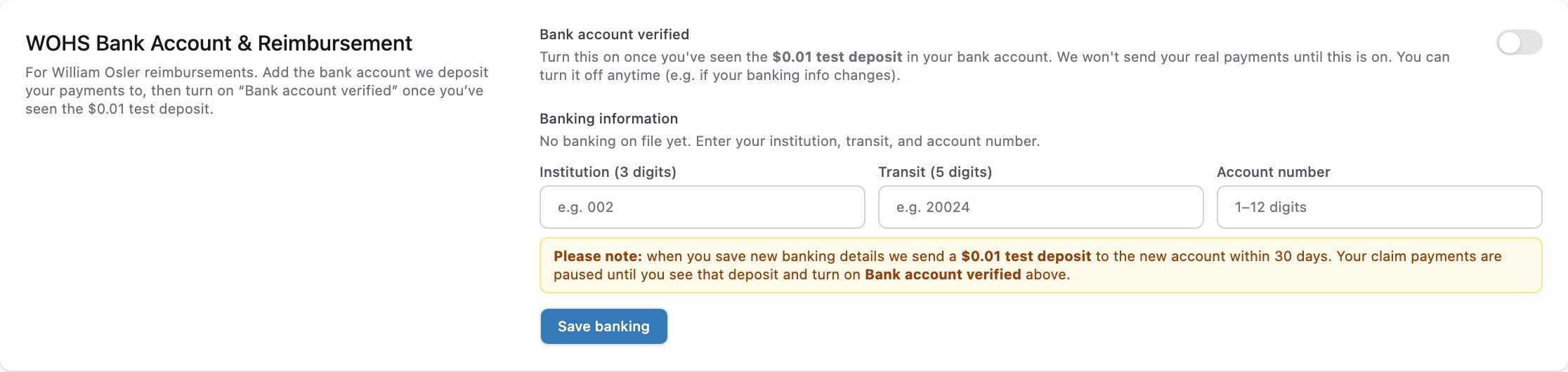 Fill in your **Institution** (3 digits), **Transit** (5 digits), and **Account number**.
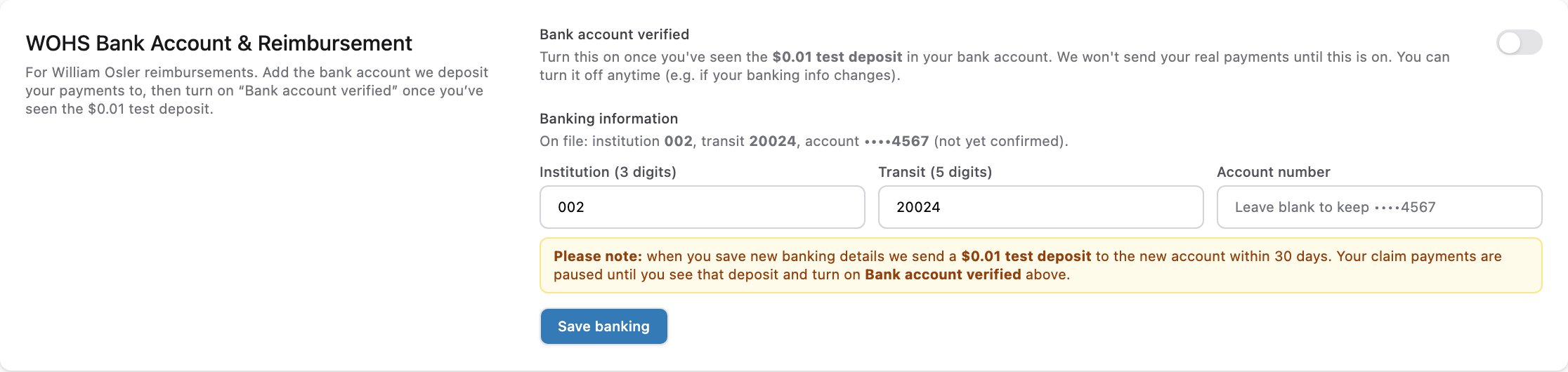
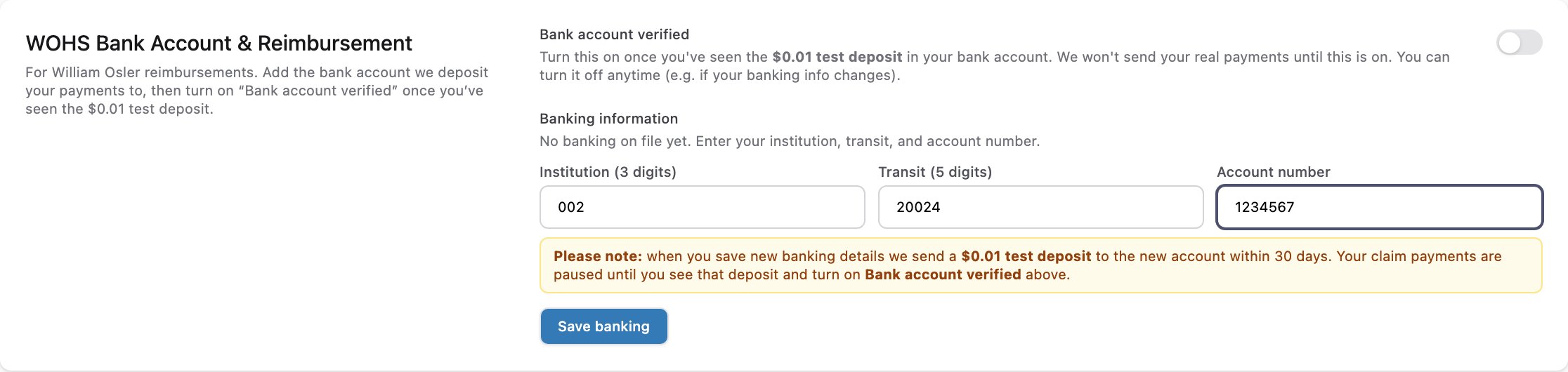 Click **Save banking**. We send a **\$0.01 test deposit** to the new account. Your saved details now show as *on file* and *not yet confirmed*.
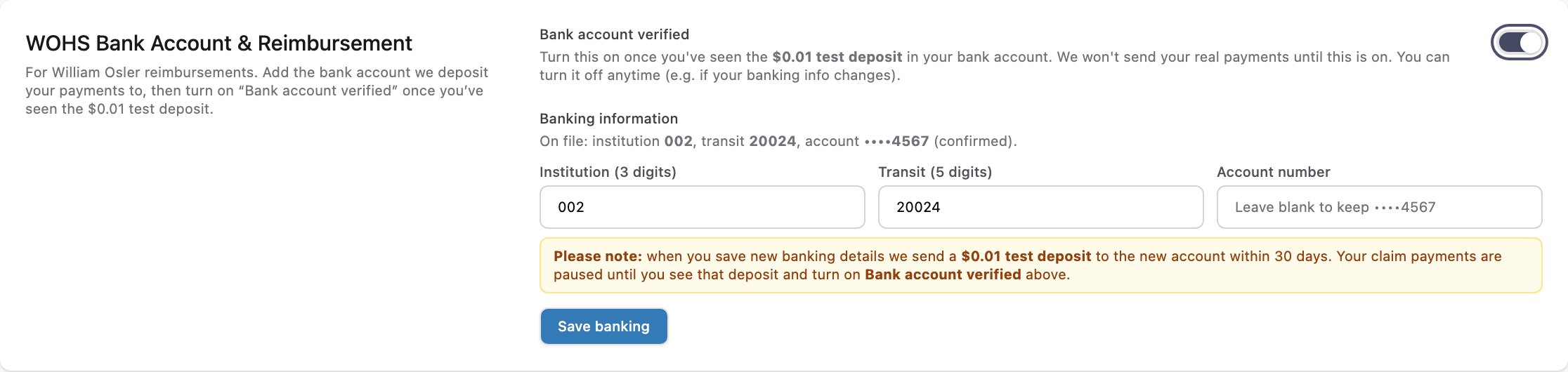
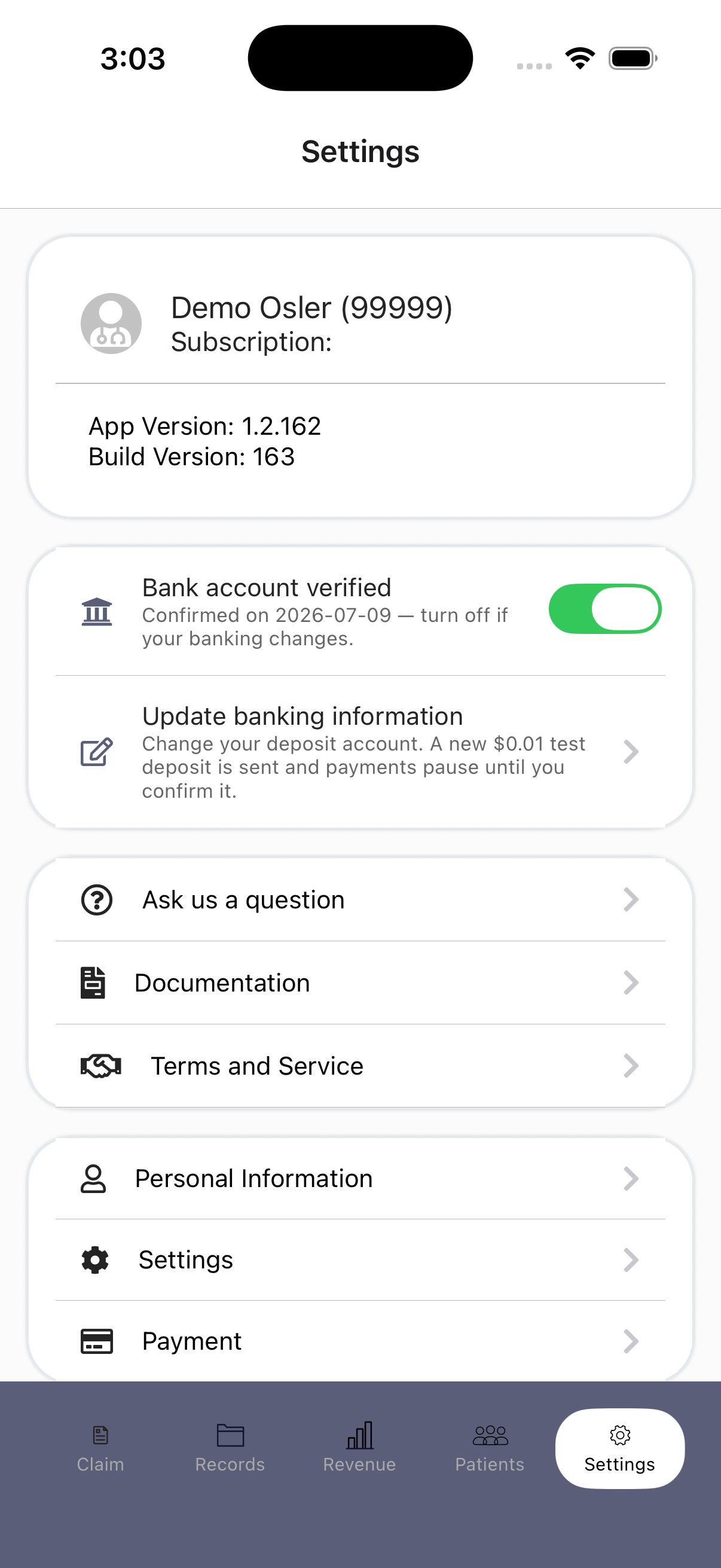
 When the \$0.01 deposit appears on your statement, turn on **Bank account verified**. Your reimbursements are now active.
 Tap the **Settings** tab. William Osler physicians see a **Bank account verified** toggle and an **Update banking information** row.
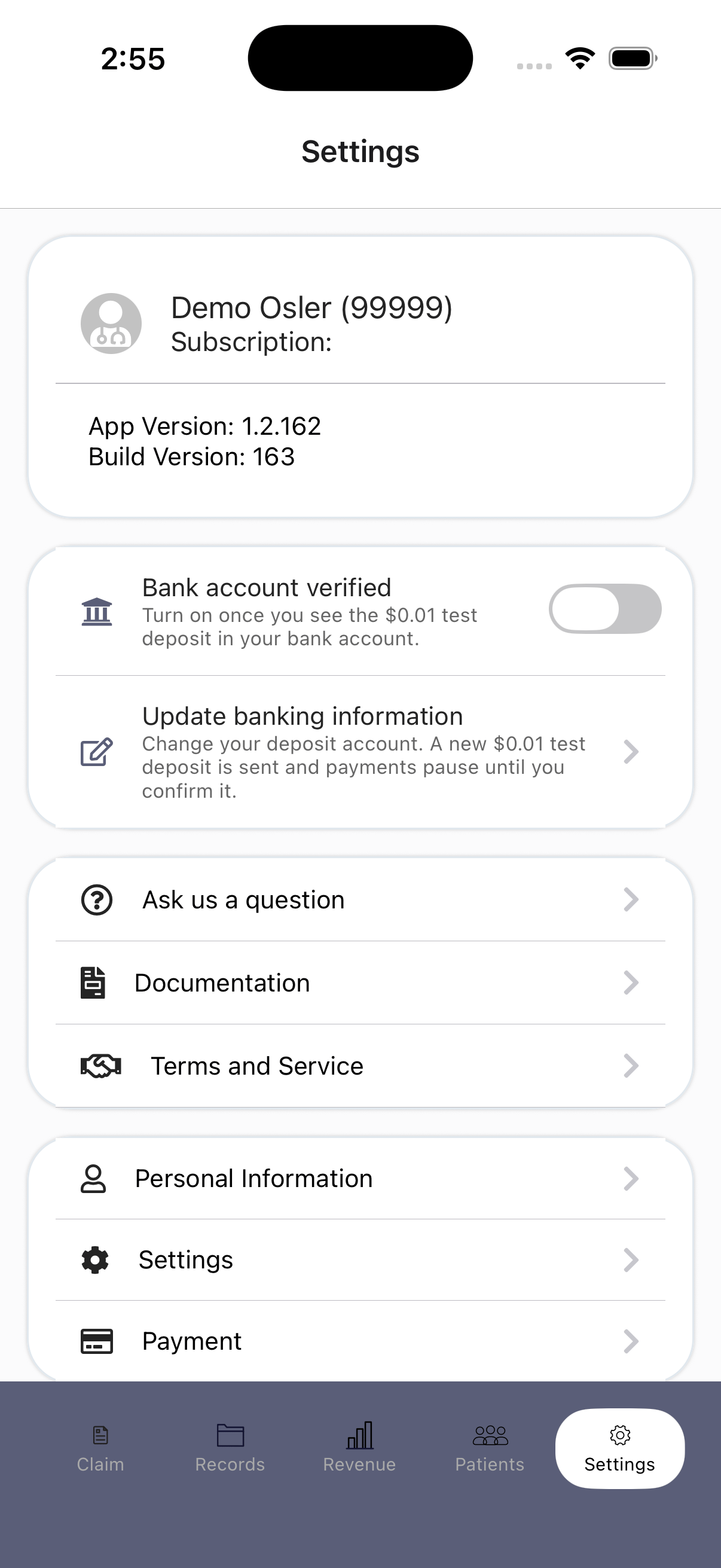 Tap **Update banking information** and enter your **institution**, **transit**, and **account number**, then tap **Save banking**. We send a **\$0.01 test deposit** to the new account, and payments pause until you confirm it.
 When the \$0.01 deposit appears on your statement, return to **Settings** and turn on **Bank account verified**. Your reimbursements are now active. You can turn it off any time if your banking details change.
 ## Related
* [Onboarding](/docs/getting-started/onboarding) — the William Osler banking steps are also part of first-time account setup.
* [Remittance & Payment](/docs/william-osler/remittance-payment) — how and when reimbursements are paid.
## Related
* [Onboarding](/docs/getting-started/onboarding) — the William Osler banking steps are also part of first-time account setup.
* [Remittance & Payment](/docs/william-osler/remittance-payment) — how and when reimbursements are paid.