
Overview
Team & Access is where you invite delegates — colleagues or billing staff who can work in your account on your behalf. You control what each delegate can do (their role) and which claims they can see (their scope), and you can suspend or remove their access at any time. This is also where you can share all your rosters with a single code.Accessing Team & Access
Go to Settings → Team & Access.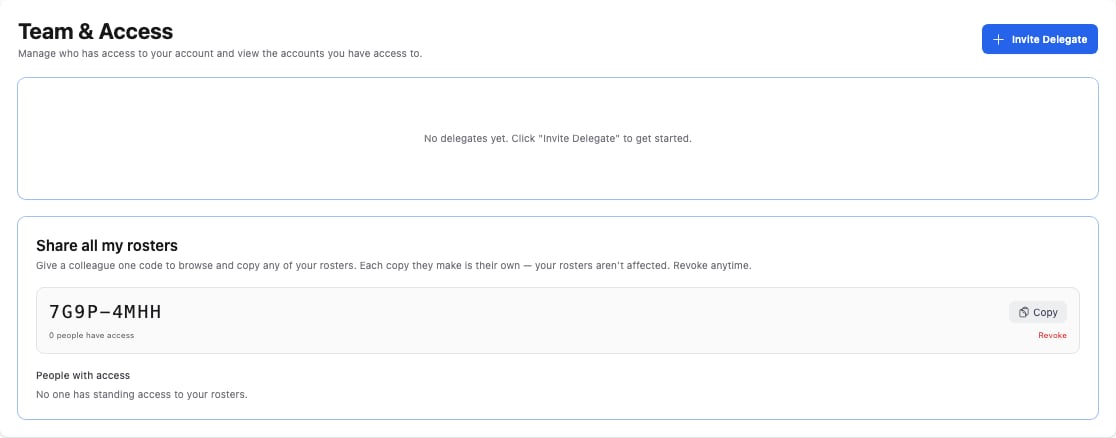
Inviting a delegate
1
Click Invite Delegate
From Settings → Team & Access, click Invite Delegate.
2
Enter their email
Enter the email address of the person you’re inviting.
3
Choose their role(s)
Assign one or more roles. A delegate’s roles determine what they’re allowed to do in your account.
4
Set their scope
Choose what the delegate can access:
- Facilities — grant access to all facilities, or select specific facilities.
- MOH groups — grant access to all billing (MOH) groups, or select specific ones.
5
Send the invitation
Send the invite. The delegate receives an email to accept it, and appears in your delegates list as Pending until they accept.
Delegate status
Each delegate shows a status:Managing delegates
Use the menu (⋮) next to a delegate to:- Edit — change their roles, facility scope, or MOH group scope.
- Resend invitation — send the invite email again (for a pending delegate).
- Suspend — temporarily turn off access without removing them.
- Restore — re-enable a suspended delegate.
- Remove — permanently remove their access.
Share all your rosters
The same page has a Share all my rosters section, giving one code that lets a colleague browse and copy any of your rosters. See Sharing Rosters for details.Best practices
- Least privilege — give a delegate only the roles and scope they need.
- Scope by facility or group — for multi-location practices, restrict delegates to the facilities or MOH groups they actually work with.
- Review regularly — audit your delegates periodically and remove anyone who no longer needs access.