
Submit a Claim in 30 Seconds
You can submit William Osler claims either from your phone using the IntelAGENT mobile app, or from the web portal at app.intelagent.ca. Both follow the same shape:- Start a new claim
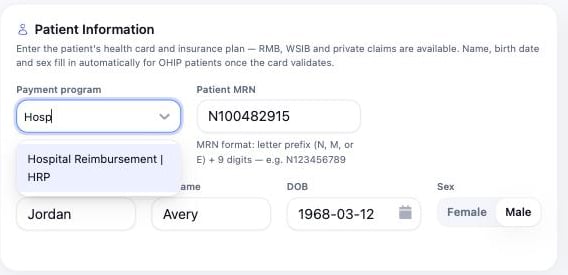
- Select HRP as the payment program
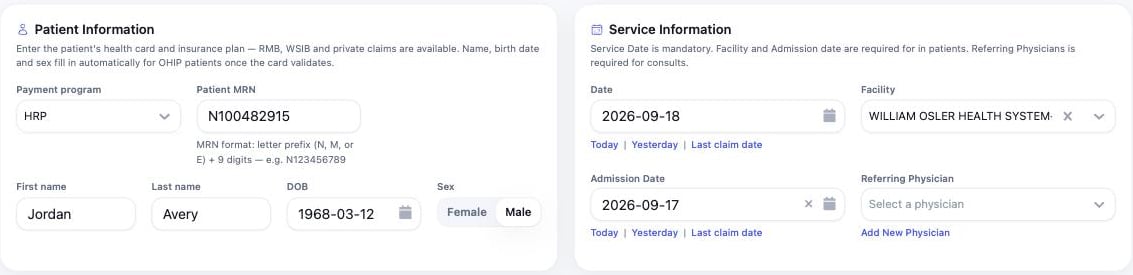
- Enter the patient MRN and demographics
- Confirm service details (date, facility, referring physician)
- Add a diagnostic code
- Add billing codes
- Submit
Whichever device you use, select HRP (Hospital Reimbursement) as the payment program — that is what routes the claim to William Osler rather than OHIP.
Step-by-Step Guide
- Mobile app
- Web portal
1
Open Claims
Tap Claims in the bottom navigation to open the claim entry screen.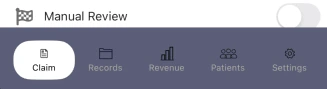
2
Enter patient details
Enter the patient’s MRN and demographic details including first name, last name, date of birth, and sex.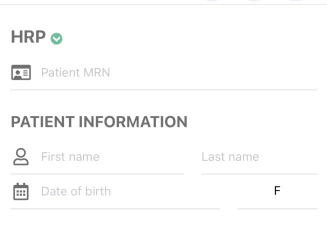
For William Osler, select HRP as the payment program at the top of the screen.
3
Confirm service details
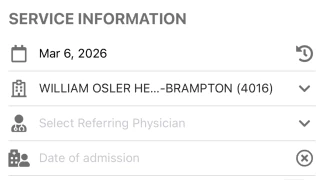
- Service date — defaults to today’s date; tap to change
- Facility — select the William Osler facility (e.g., William Osler HE… - Brampton)
- Referring physician — select if applicable
- Date of admission — enter if the service is related to a hospital admission
4
Add diagnostic code
Select the diagnostic code that explains the clinical reason for the service. You can search by code number or description.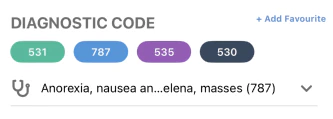
5
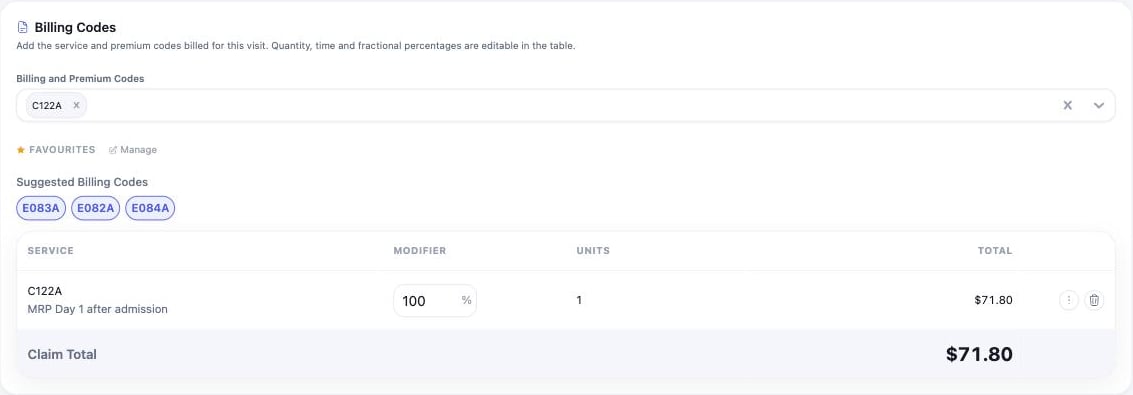
Add billing code
Enter the appropriate OHIP billing code and adjust units if required. You can tap + Add Billing Code to add additional service codes to the same claim.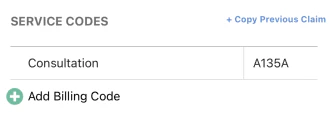
6
Submit the claim
Review the claim details and the total claimed amount, then tap Submit Claim. You can also tap Save Draft to save the claim and submit it later.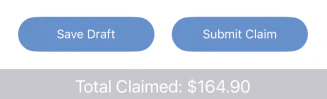




After Submission
Once your claim is submitted:- The claim status will show as Pending
- At the end of the billing cycle, accepted claims will move to Paid status
- You will receive payment directly from IntelAGENT to the bank account you have set up with William Osler
Tips
- Double-check the MRN — ensure you have the correct patient medical record number before submitting
- Submit promptly — you have 60 days from the service date to submit your claim
- Use drafts — if you’re unsure about any details, save as a draft and complete later