
Overview
After you create your account you get immediate access to explore the platform — but before you can submit OHIP claims there are a few steps to complete. IntelAGENT guides you through them in the onboarding wizard. You reach the wizard right after signing up, and you can return to it any time from the user menu → User Onboarding. A red dot stays on that menu item until everything is done.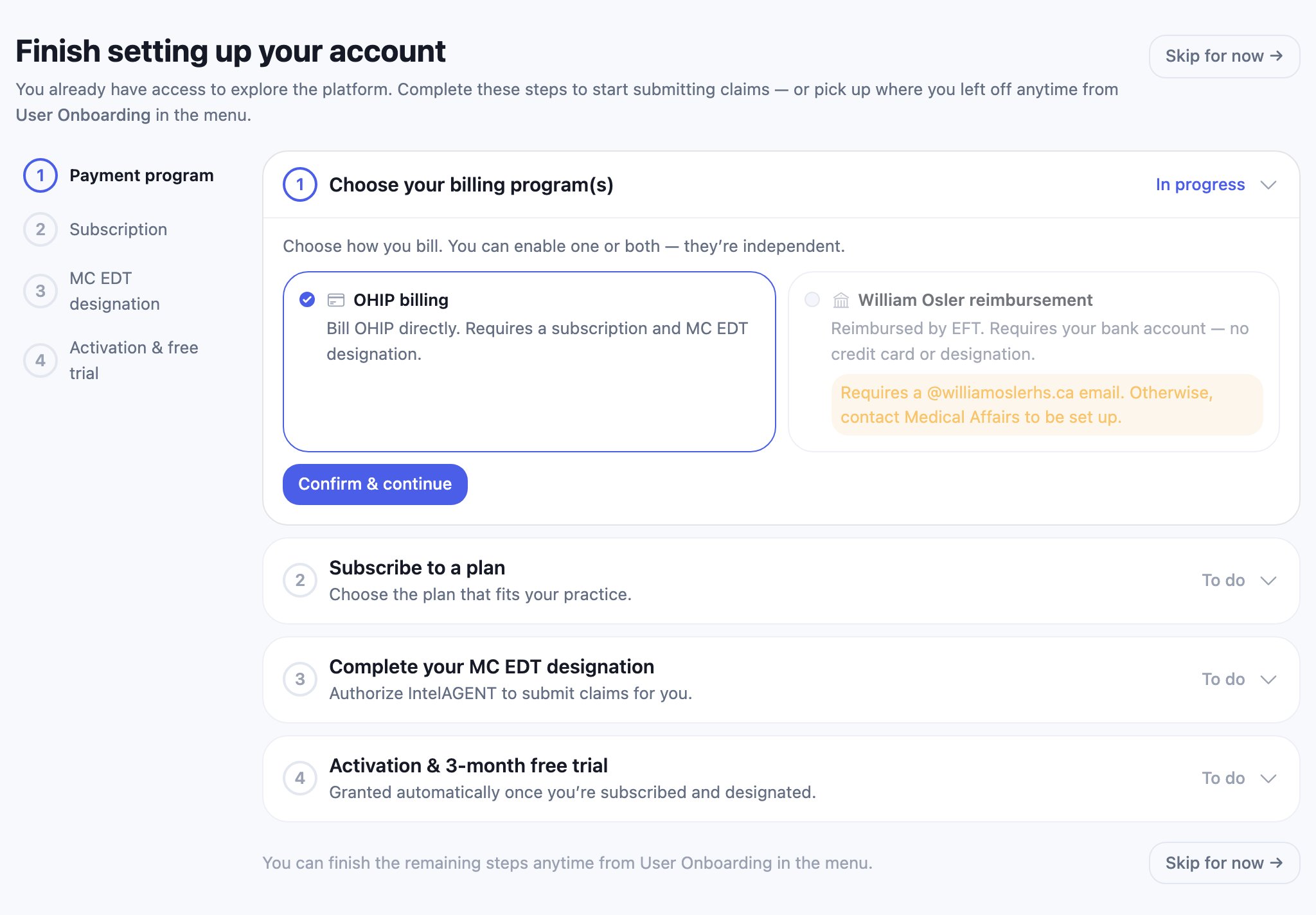
You can leave the wizard at any point with Skip for now and pick up where you left off later — your progress is saved.
Billing for services provided at William Osler Health System? See WOHS Onboarding instead — that path is reimbursed by EFT and needs no subscription or MC EDT designation.
Create your account
Sign up at app.intelagent.ca/register. Enter your name, email, and a password (at least 8 characters), then click Continue — you’ll go straight into the onboarding wizard.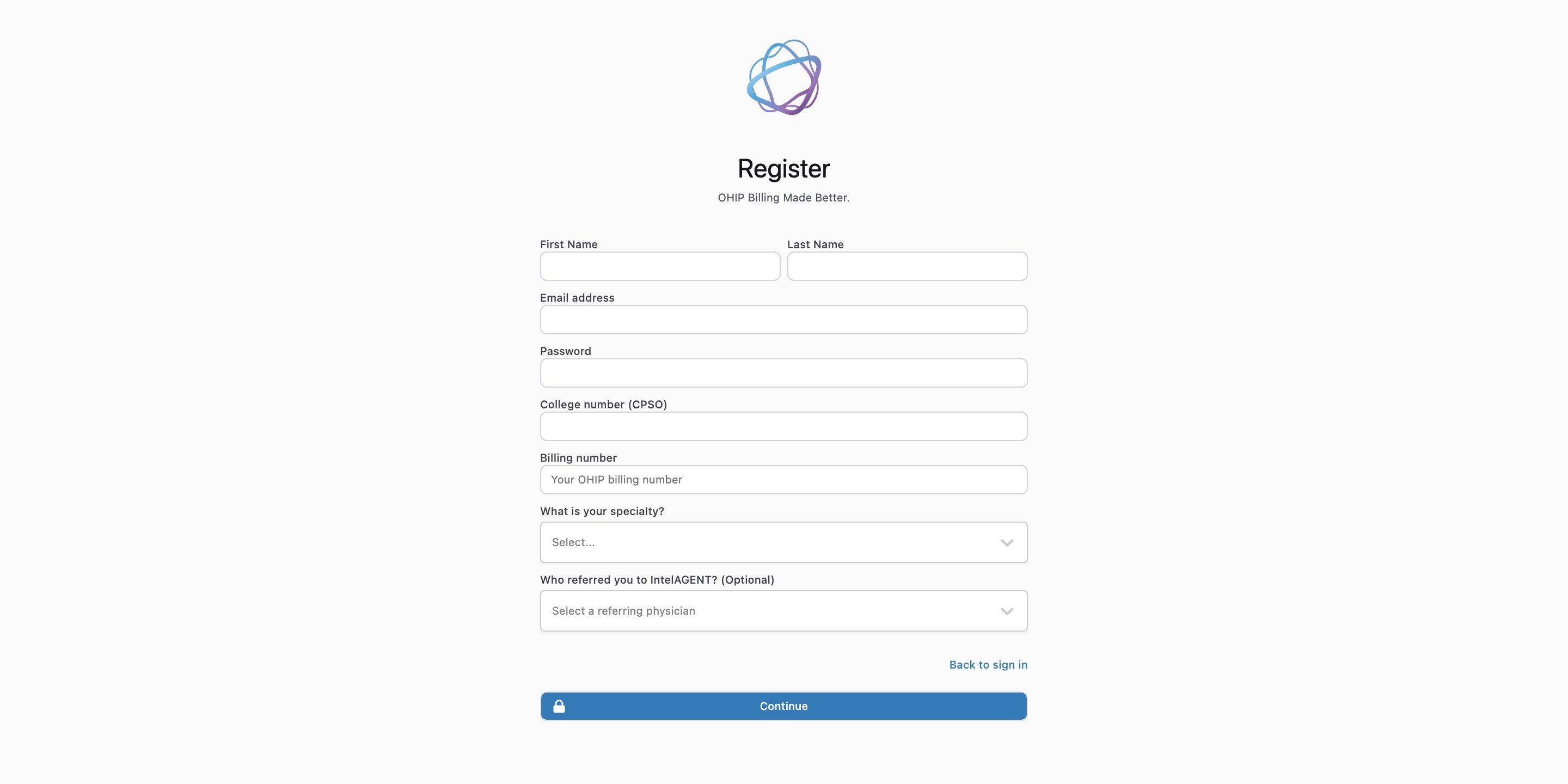
Step 1 — Choose your billing program
Select OHIP billing to bill OHIP directly, then click Confirm & continue. The remaining steps update to match your selection.The two billing programs are independent — you can also enable William Osler reimbursement here if you have a
@williamoslerhs.ca email. See WOHS Onboarding for that path.Step 2 — Subscribe to a plan
Choose the plan that fits your practice and add a payment method. Your card isn’t charged during the free trial (see below).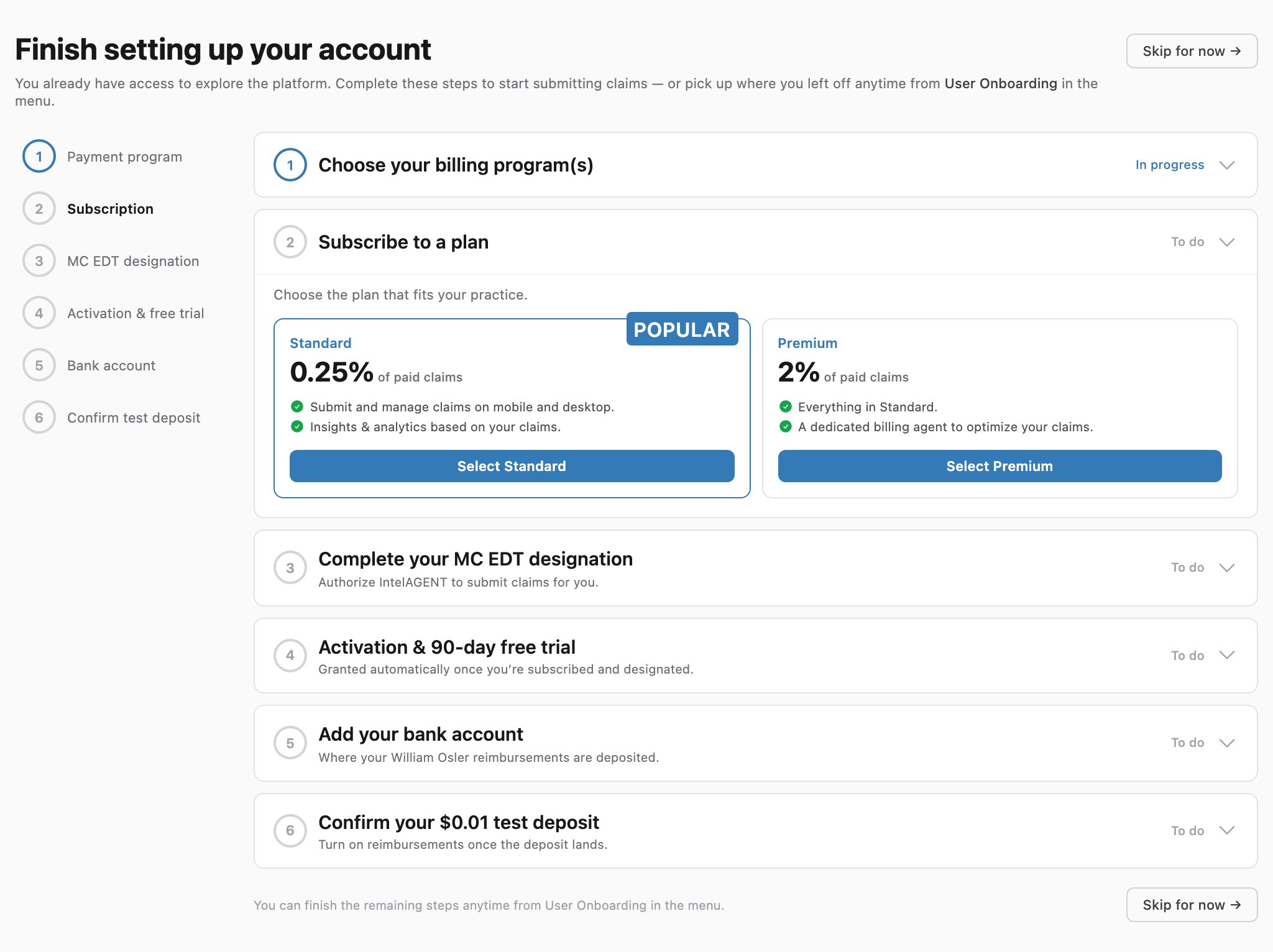
Step 3 — Complete your MC EDT designation
Authorize IntelAGENT to submit claims on your behalf by designating us as your EDT agent through GO Secure. The step lists every instruction inline; for the full walkthrough see the MC EDT Designation guide. When you’ve finished granting permissions, click Confirm validation. IntelAGENT checks with the Ministry that the designation is live. If it isn’t confirmed yet, finish granting the MC EDT permissions and try again.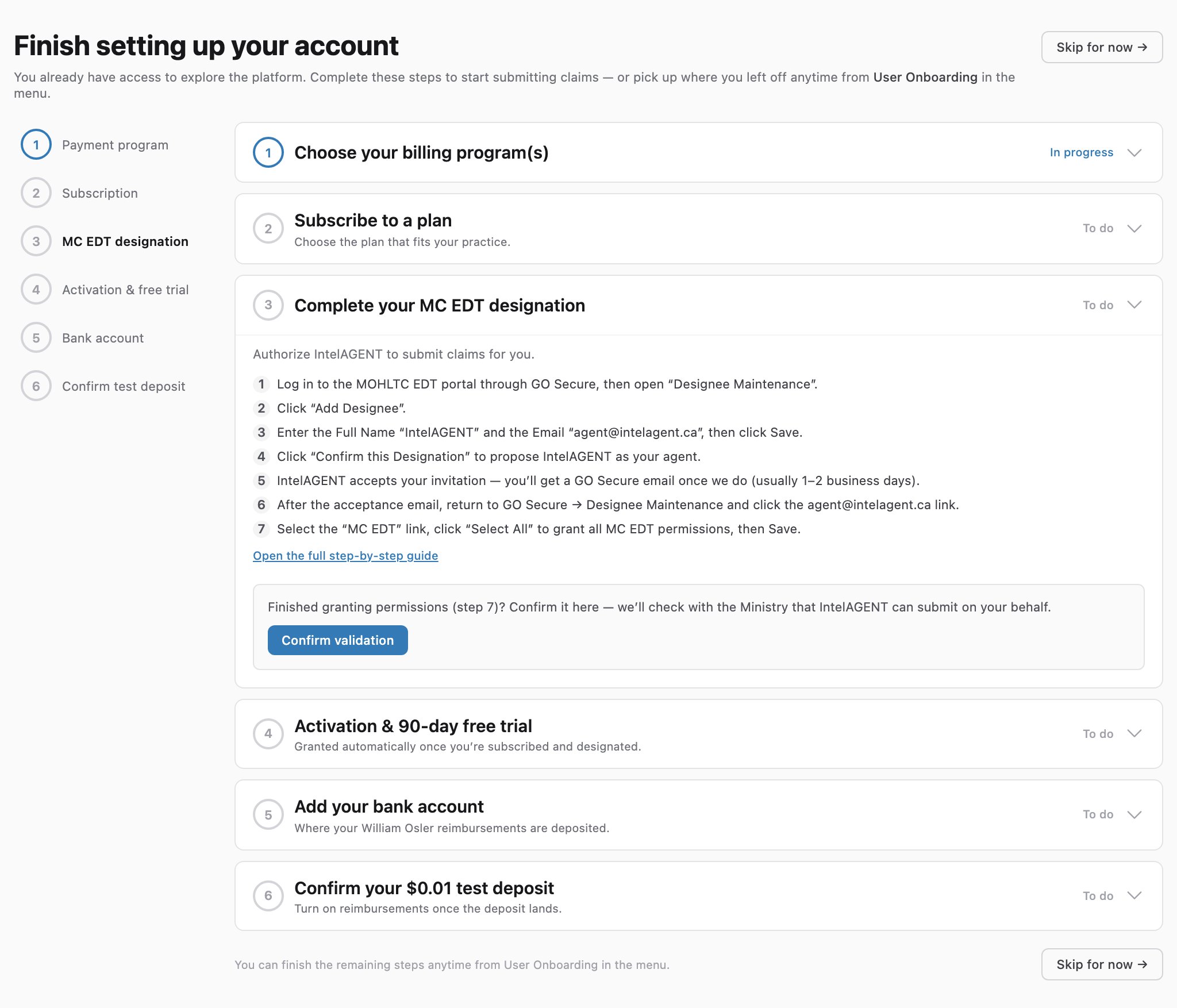
Step 4 — Activation & 3-month free trial
Once you’re subscribed and your designation is confirmed, your account is activated automatically and your 3-month free trial begins — no charge until it ends. You can now submit claims.
Until your account is activated, any claims you create are saved as drafts and held — they are only submitted to OHIP once you’re active.