
Filter to what needs attention
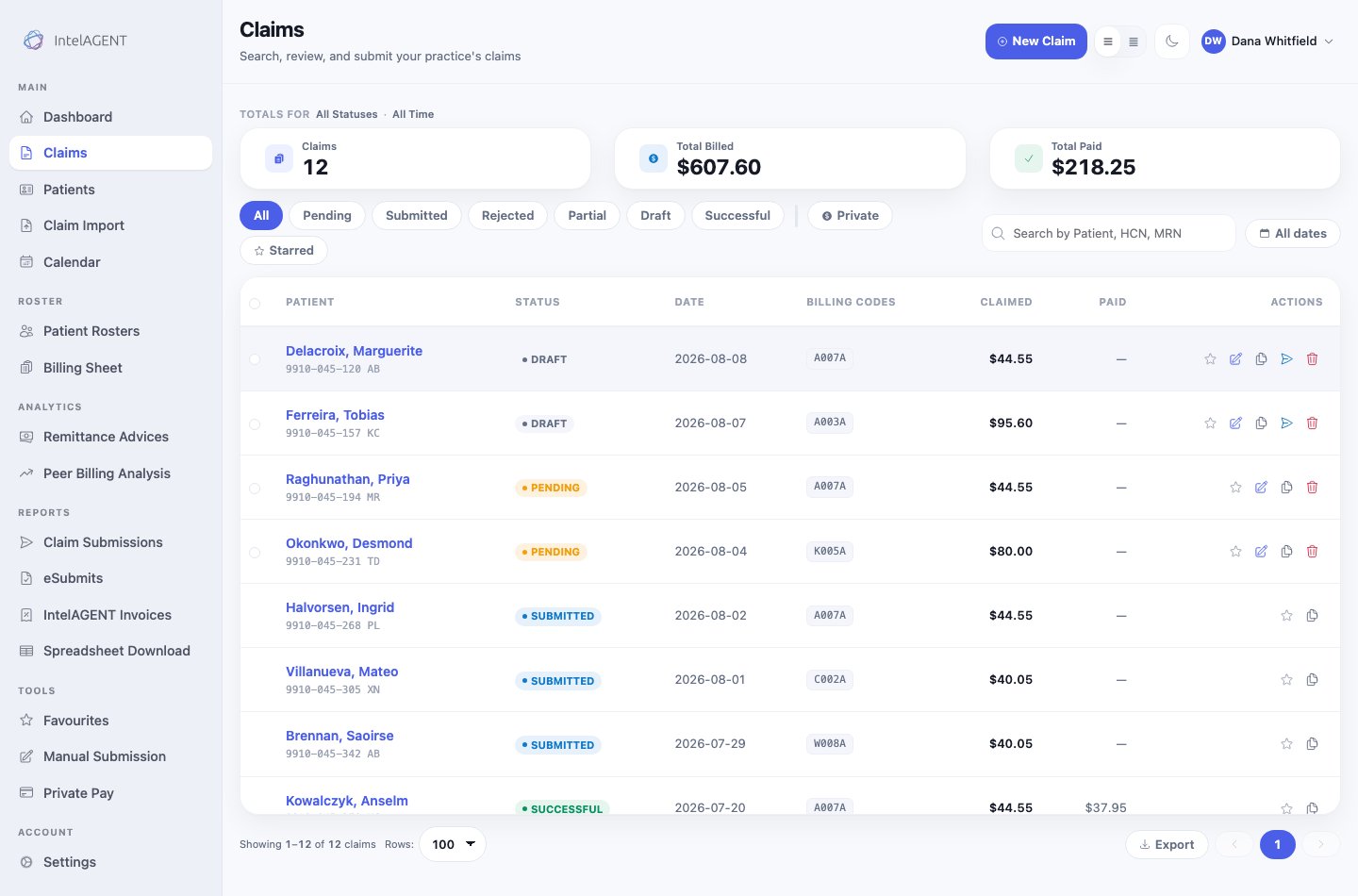
The Claims screen, filtered by status
The three totals above the list — Claims, Total Billed, Total Paid —
follow whichever filter you have on, so filtering to Rejected tells you what the
rejections are costing you.
Find one claim
Use the search box for a patient name, health card number or MRN. The date control beside it narrows to a period. They combine, so you can search one patient within one month.Act on a row
The icons at the right of each row are the actions available for that claim’s status. An editable claim (draft or pending) offers more than a submitted one, which is deliberate — a claim already with the Ministry can’t be quietly changed.- Star flags a claim so you can find it again with the Starred filter.
- Edit opens the claim to change codes, dates or diagnosis.
- Copy starts a new claim from this one, which is the quick way to bill a repeat visit.
- Delete removes a claim that hasn’t been sent.
Fixing a rejection
Filter to Rejected and open the claim. The rejection reason comes from the Ministry and names what it objected to — a diagnosis that doesn’t go with the code, a service date outside the patient’s eligibility, a missing referring physician. Correct that field and resubmit; the claim goes back into the queue as pending.Remittance Advice Inquiry (RAI) - Ask the Ministry to reassess
A claim that was processed on the Remittance Advice can’t be submitted — the Ministry has already ruled on it. To dispute that ruling you file a Remittance Advice Inquiry (RAI), which goes to the Ministry electronically as an eSubmit.Start from the claim
Open the claim. Remittance Advice Inquiry sits in the header next to Edit Claim, and only appears once a remittance advice has come back for that claim — until then there is no assessment to inquire about.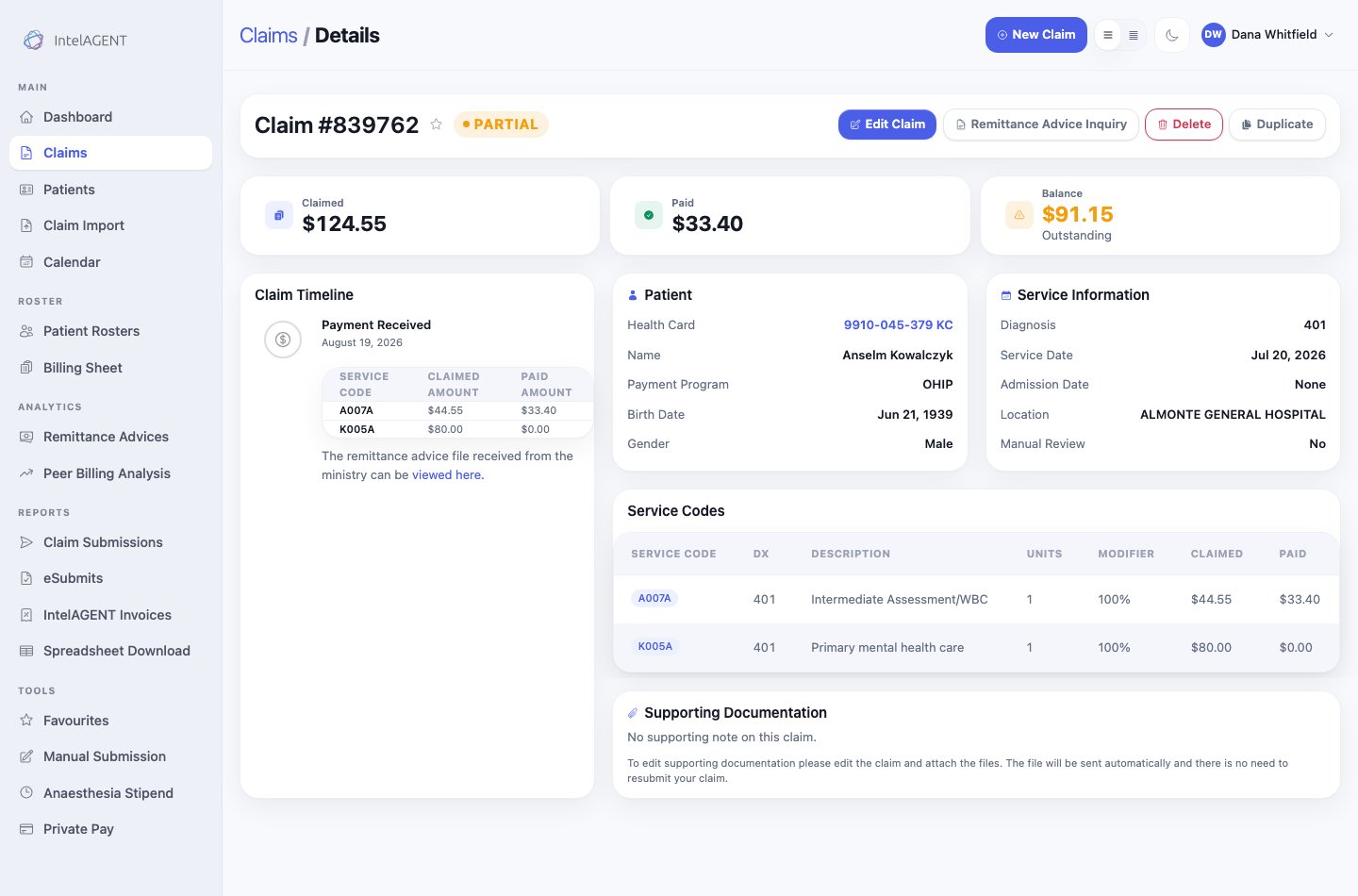
A claim the Ministry paid short: one line reduced, one line paid nothing
Fill in the inquiry
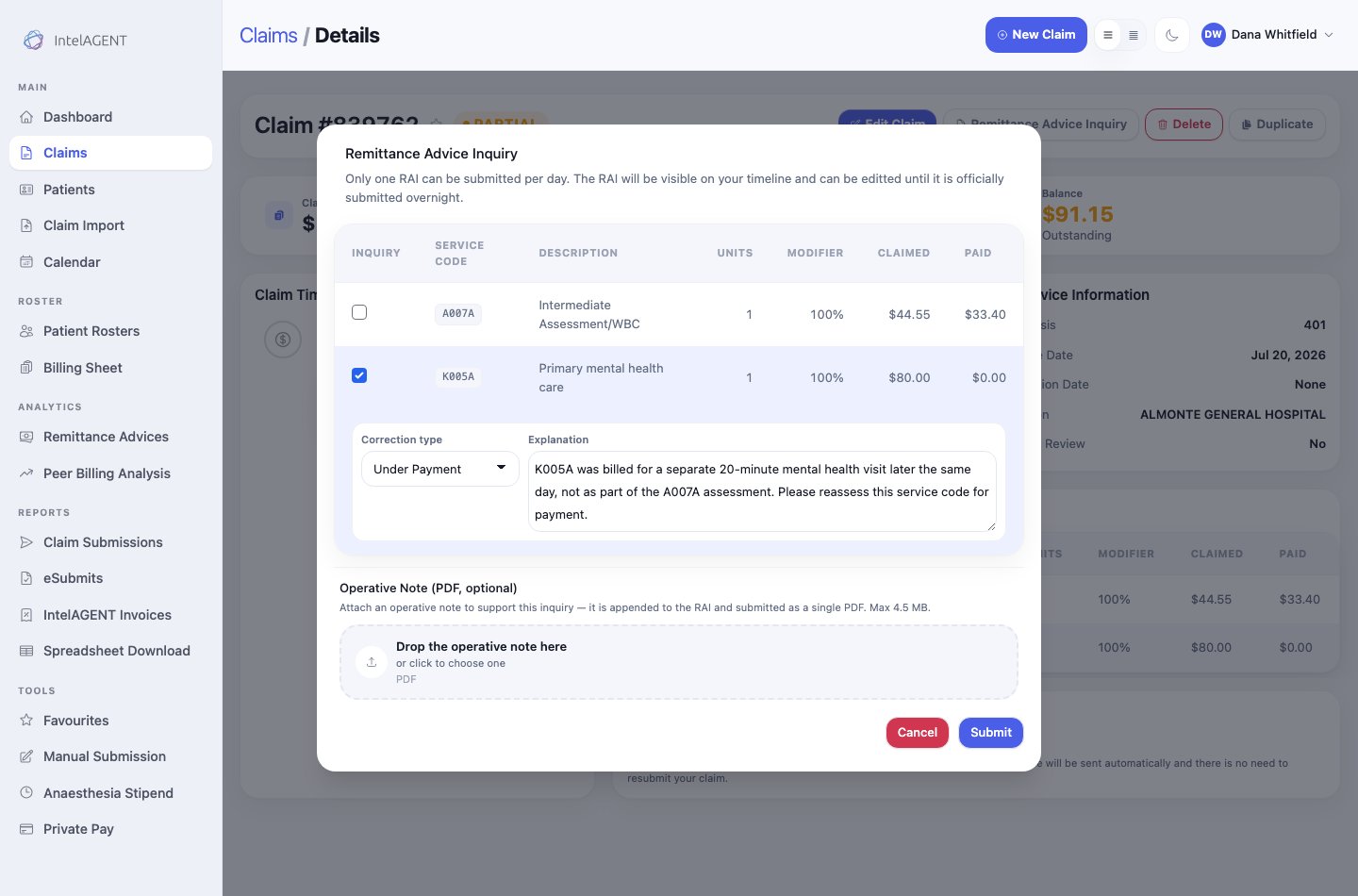
One line ticked, with a correction type and an explanation
- Tick the lines you’re inquiring about. Only ticked lines go on the RAI — a line that was paid correctly should stay unticked, or you invite the assessor to look at it again.
- Choose a correction type. Under Payment, Over Payment or Correction, per the table above.
- Write the explanation. A person at the Ministry reads this. Say what was done, why the code applies, and what you want reassessed.
- Attach an operative note if the service needs supporting evidence. PDF only, under 4.5 MB — it’s merged into the RAI and submitted as one file, and OHIP caps the whole thing at 5 MB. If the claim already carries a note, that one is attached automatically and the dialog says so.
- Submit.
After you submit
Only one RAI can be submitted per day. It goes out on the overnight submission run, and until then it sits on the claim’s timeline as pending.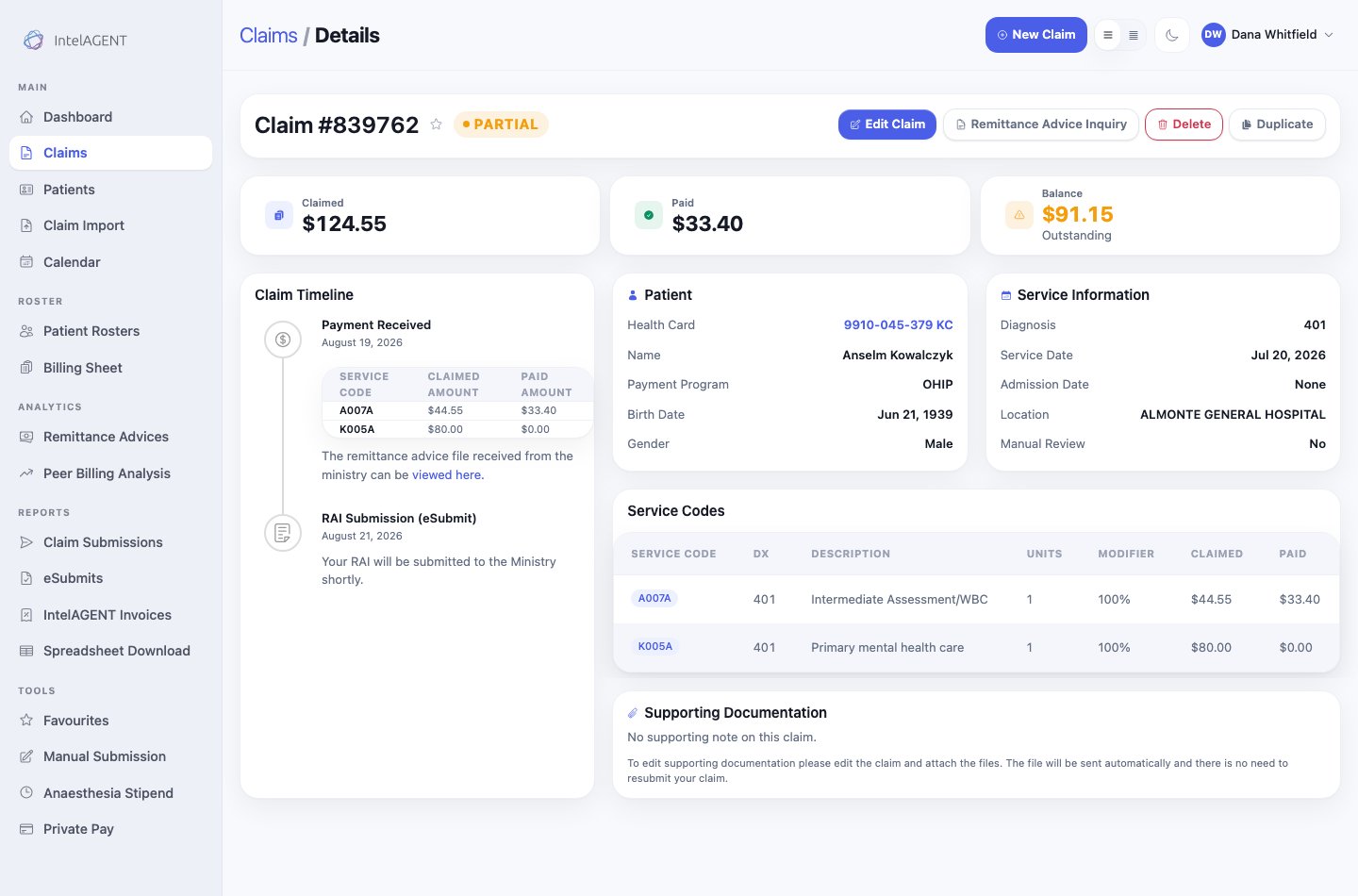
The inquiry queued on the claim timeline
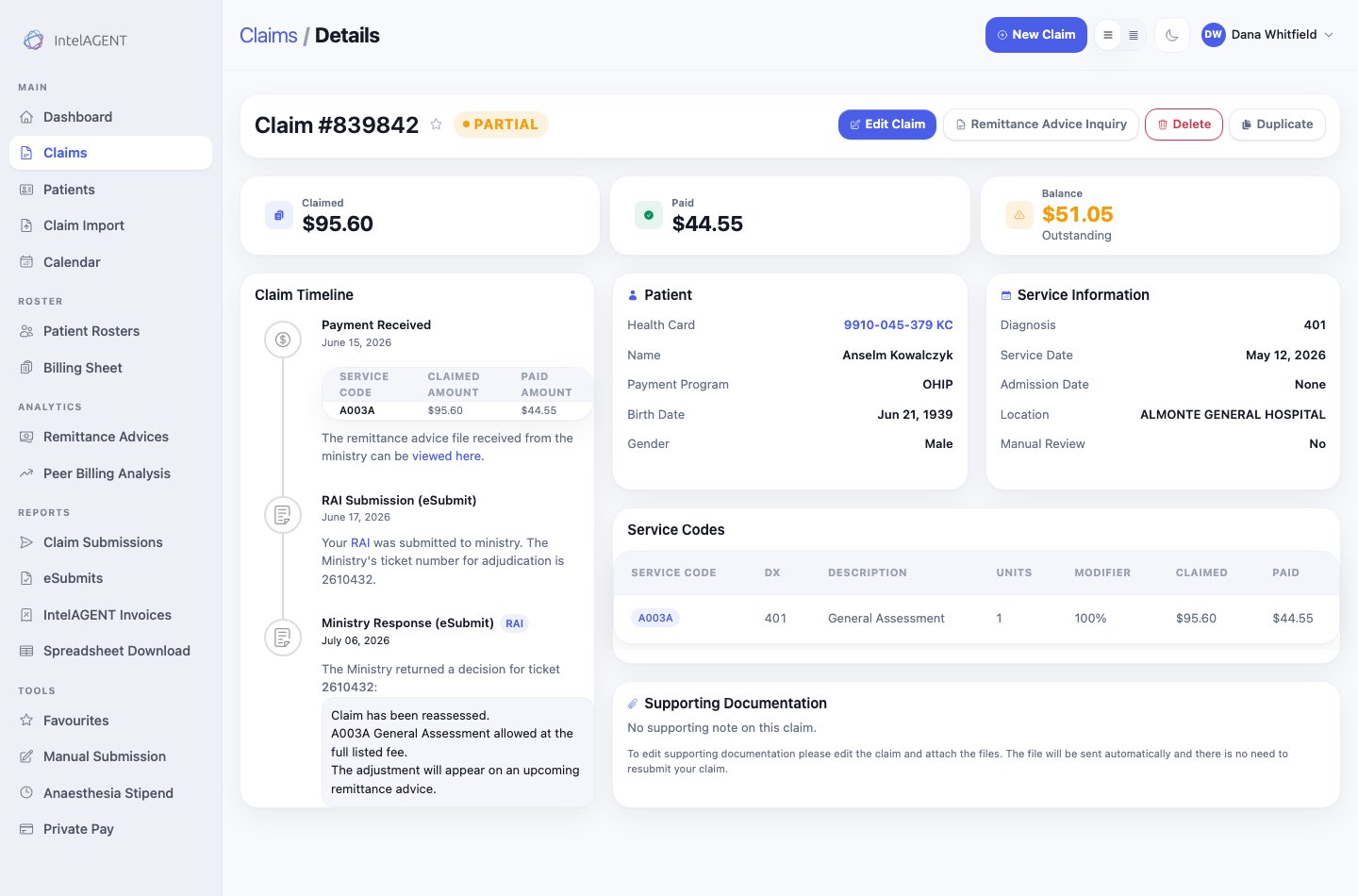
A decision returned against the inquiry's ticket number
Track every inquiry in one place
Reports > eSubmits lists every RAI and documentation submission you’ve made, with its status, ticket number, and the Ministry’s response.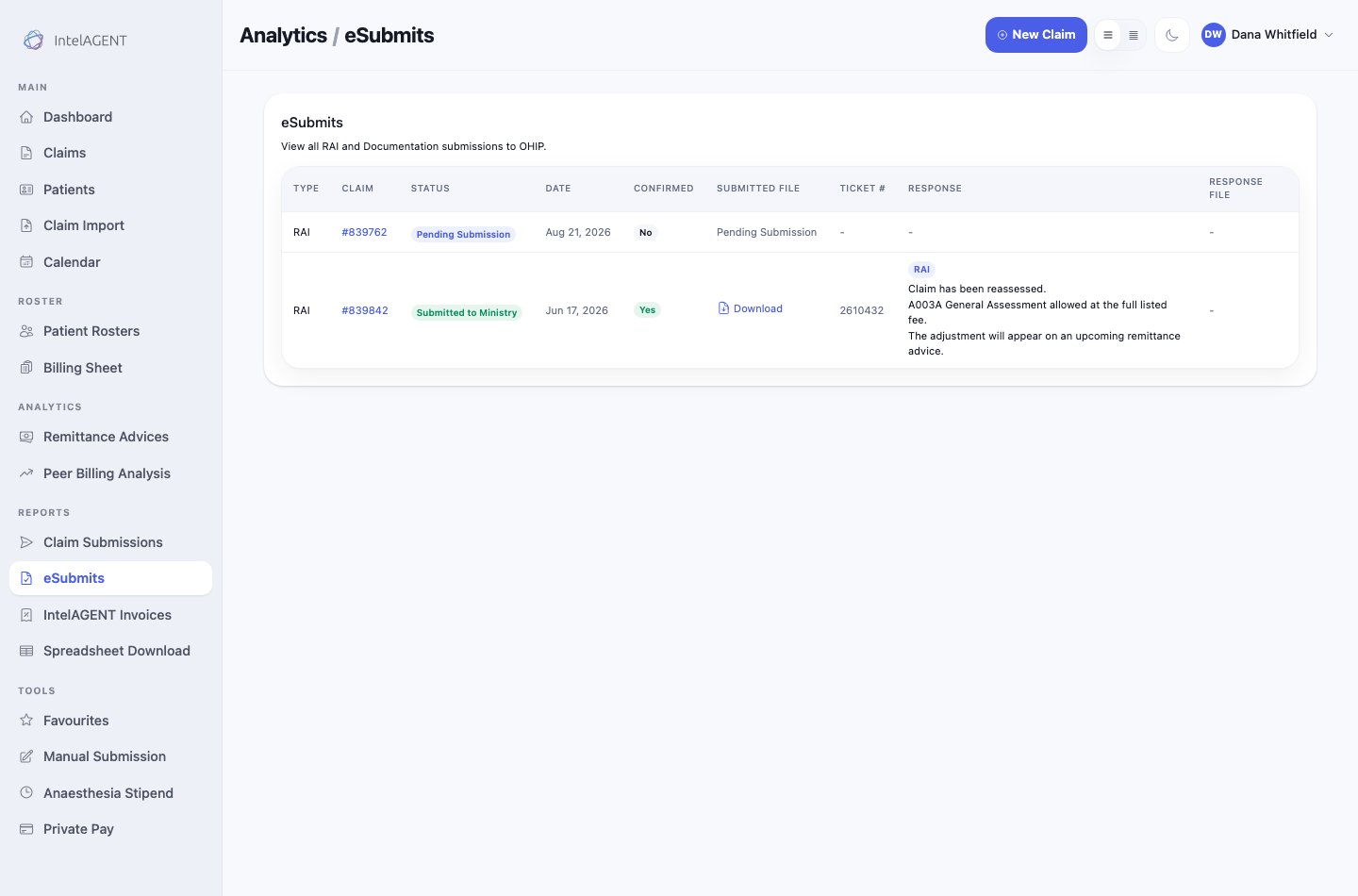
The eSubmits report: one RAI waiting to go, one already answered