
.csv, .xls or .xlsx.
Epic and Cerner exports work as they come out of the system.
Drop the file in
Open Claim Import from the sidebar and drop your export onto the box.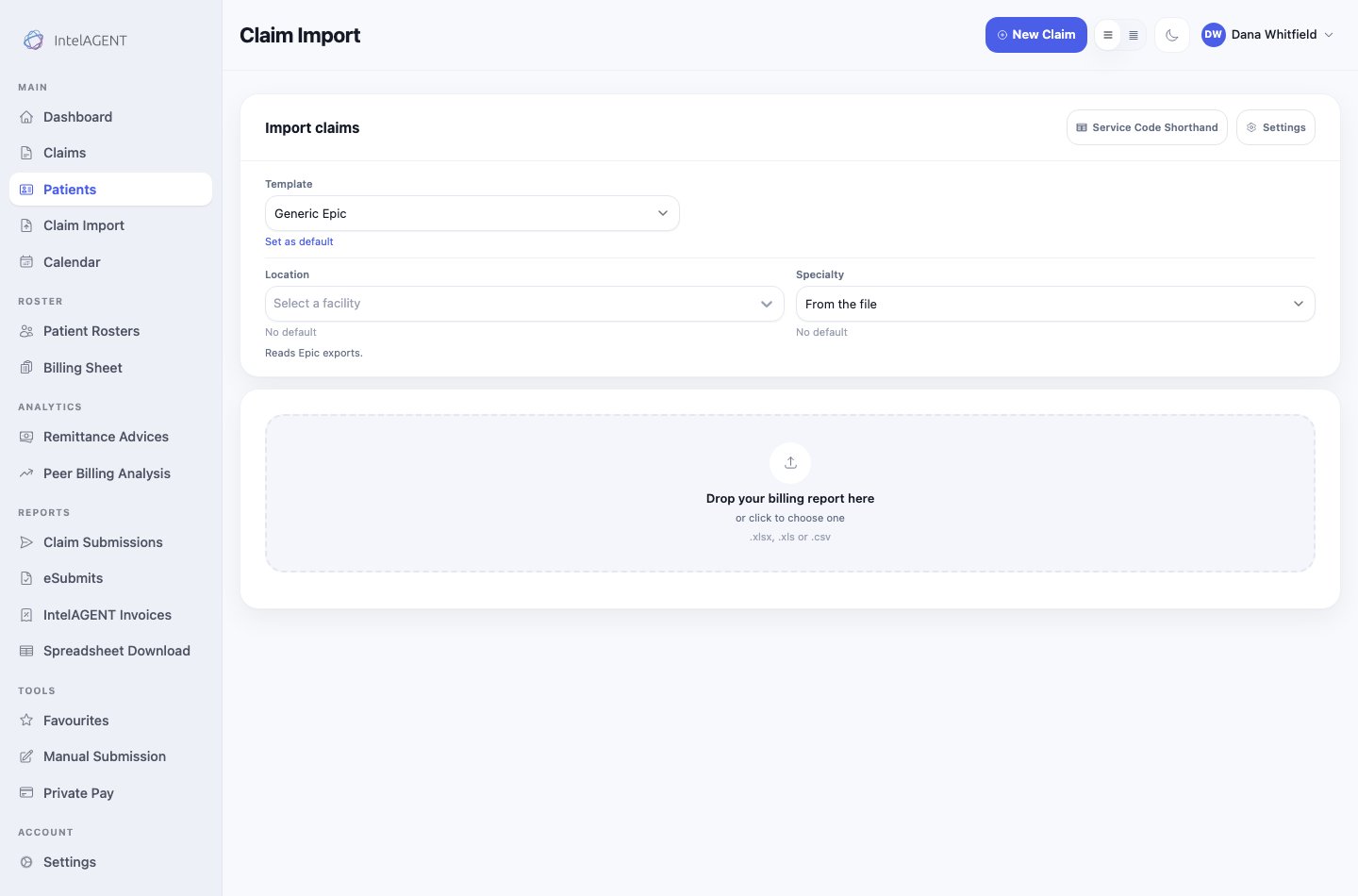
The Claim Import screen, waiting for a file
Read what came back
Every row is turned into a claim and checked before you commit to anything.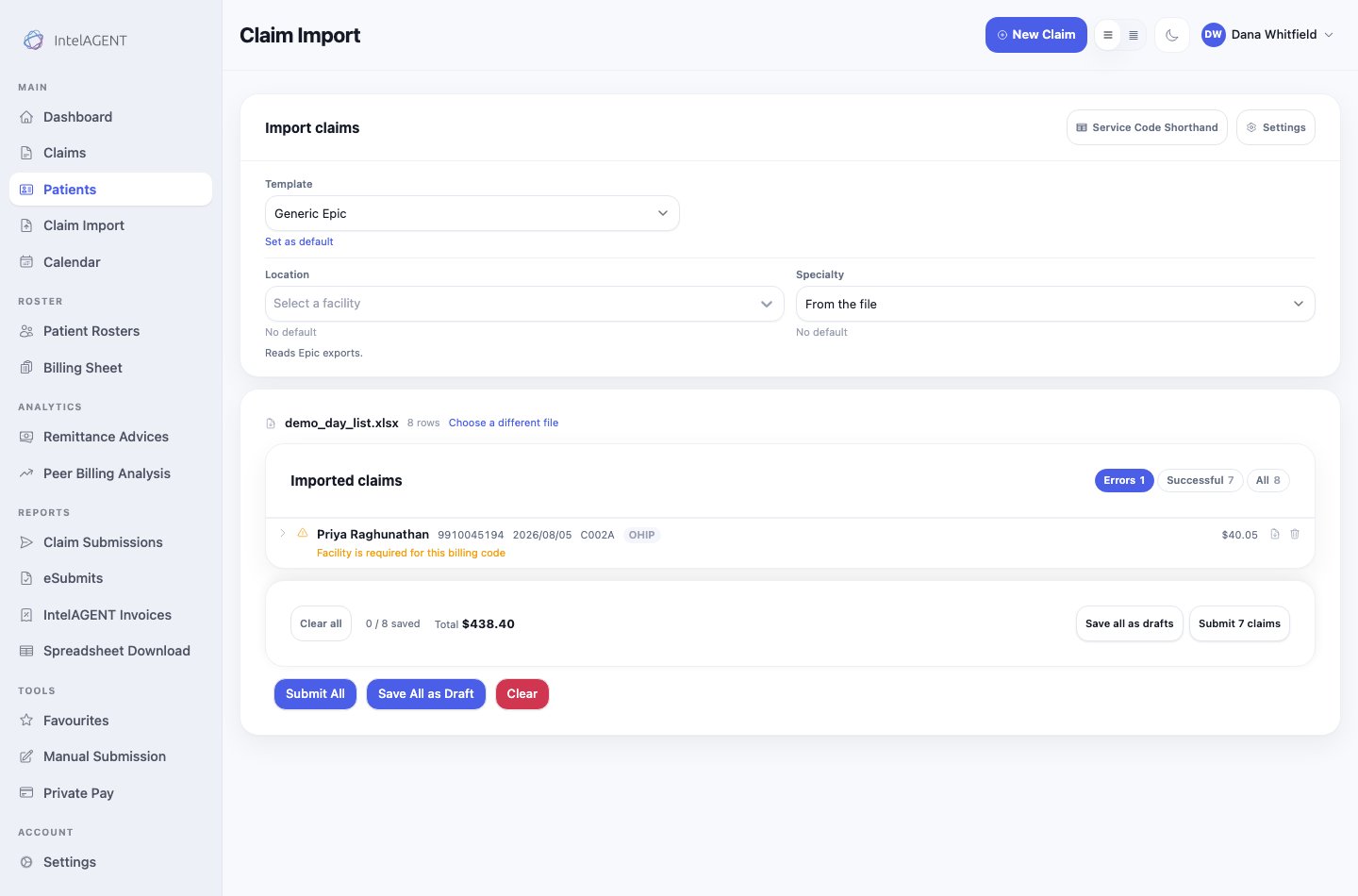
Eight rows read from the file: seven ready, one needing a location
1
Errors
Start here. Each flagged row says what is wrong in plain words — Facility is
required for this billing code, Diagnostic Code is required. Open the row
and fix it in place.
2
Successful
Rows that need nothing from you. Worth a glance, not a review.
3
All
The full file, in the order it arrived.
Send them
Two buttons, and the difference matters:- Save all as drafts puts everything in Claims for later. Nothing goes to the Ministry. Use this when you want a second look, or when you’re missing information you’ll have tomorrow.
- Submit N claims sends only the rows that passed. A flagged row is never submitted by accident — the count on the button is the number that will actually go.
A row you can’t fix today doesn’t block the rest. Submit the ones that pass,
and the flagged rows stay put as drafts until you come back to them.